Make the work. Together.
Bring your team around the same picture, even when you’re apart. SQUAD Studio’s Team plan lets you paint, try AI image ideas, and review together. Everyone sees the changes, and feedback stays beside the detail you mean.
One shared canvas, with the tools and access your team needs.

See the change  while it happens.
A review can stall when everyone is reacting to a different version of the picture. On Team, your colleagues see the change as you paint a warmer corner or move an image into place, so you can judge the revision together while it is still easy to adjust. Click a teammate’s picture to join the area they are working on.
Point out the detail.
When “over there” could mean several details, show the team exactly where to look. Draw a temporary line or leave a short note on the picture, then ping the center of your view to bring colleagues to that spot. The marks fade after the discussion moves on, keeping the artwork clear.
Save a place worth returning to.
Returning to a review should not begin with another search across the canvas. Shared saved views give the team a named place to return to, so the main composition or costume study is ready for the next conversation.
Leave the feedback  where the fix belongs.
The artist making a revision may not have been in the conversation that led to it. Circle the boot, bottle, or background you mean and pin a comment beside it, then tag the person handling the change. The detail and the discussion stay together, with replies and mentions notifying the people involved so they can pick up the work after the meeting.
Shared comments are for people with access to the canvas. For an outside client, save an image and use your usual review process. Voice calls, video calls, and a client review website are not included.
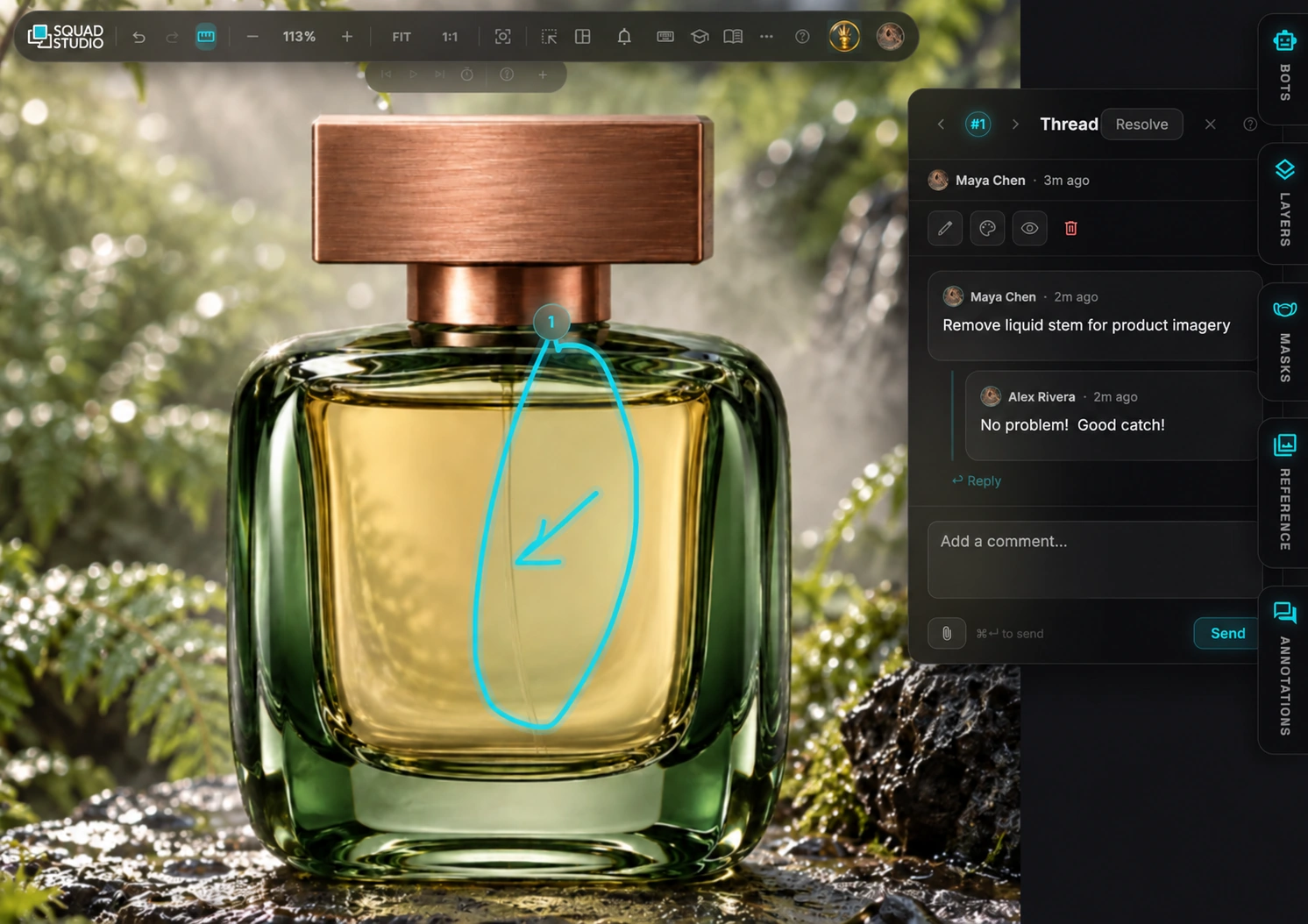
The circled bottle stem and pinned conversation show exactly what needs to change. On Team, the artist can follow the discussion right beside the detail. View full size
Give the team  a workspace of its own.
When people join a project, they need a clear place to find the work and the tools chosen for it. Team includes one squad, a named group that shares projects and image tools, so you can give colleagues a common workspace for the brief.
A project that starts with one artist can grow into a team effort without being rebuilt. Choose your squad in the project’s sharing menu when it is ready for others. As responsibilities change, you can rename the group, describe its work, or hand leadership to another member while keeping the group in place.
If you need several connected groups, talk to us about an Enterprise setup based on Team. Tools and image-service accounts can be assigned to a group; studio administrators can still see those accounts and connection details. Compare plans.
Choose what each person  can do.
Someone who reviews artwork does not need the same control as the person running the studio. Start with administrator, team lead, artist, reviewer, or viewer, then use the visual checklist to fit permissions to each person’s job. A technical teammate can prepare image tools without also controlling billing or invitations.
Invite people to the work they need.
Bringing a collaborator into one campaign should not open every studio project to them. Give them view, edit, or administration access to the canvas they need, with access checked where the work is stored as well as in the interface. Team billing starts counting that person after they accept the invitation and join.
Know who  changed access.
When someone can no longer reach a project, or a new lead takes over, you need more than a guess about what changed. Access history lets you trace who joined, whose permissions changed, and when leadership moved, giving you a record to use when sorting out the team’s access.
If the question is about an earlier artwork revision, Pro and Team also offer opt-in version tracking for saved images. That is a separate record from team access history, with the comparison tools explained on the Canvas page.
Your studio controls where projects are stored. Team can add content checks on company computers.
Bring your next  project into the same room.
Bring a project where feedback is getting separated from the work. Download the beta and try carrying one revision from the first discussion through the artist’s changes on the same canvas.
For Mac and Windows.