An idea in mind. A tool to try it.
Want to place a product in a room or try a different outfit? SQUAD Studio puts prepared AI image tools beside your pictures. Choose one, describe your idea, and get a new image you can keep painting and refining.
You direct the picture. A technical teammate can prepare the tools.
Your tools, beside  the work.
A useful AI tool can still interrupt the work if every attempt means gathering pictures in one place and taking the result somewhere else. Keep the tool beside its visual brief in SQUAD Studio, then paint, arrange, and refine what it returns on the same canvas. Team adds shared feedback on the artwork.
Someone prepares the tool.  You make the picture.
The builder’s view
A workflow can do exactly what the studio needs and still be difficult to hand to someone who does not work in node graphs. With ComfyUI, software for building connected image-making steps, a technical teammate prepares and tests the workflow, then turns it into a card in SQUAD Studio. Artists get a tool they can use for the job, while the builder keeps control of how it works. Try our simple SDXL example to see the whole journey, from importing a prepared workflow to making your first picture on the canvas. The guide includes the workflow download.
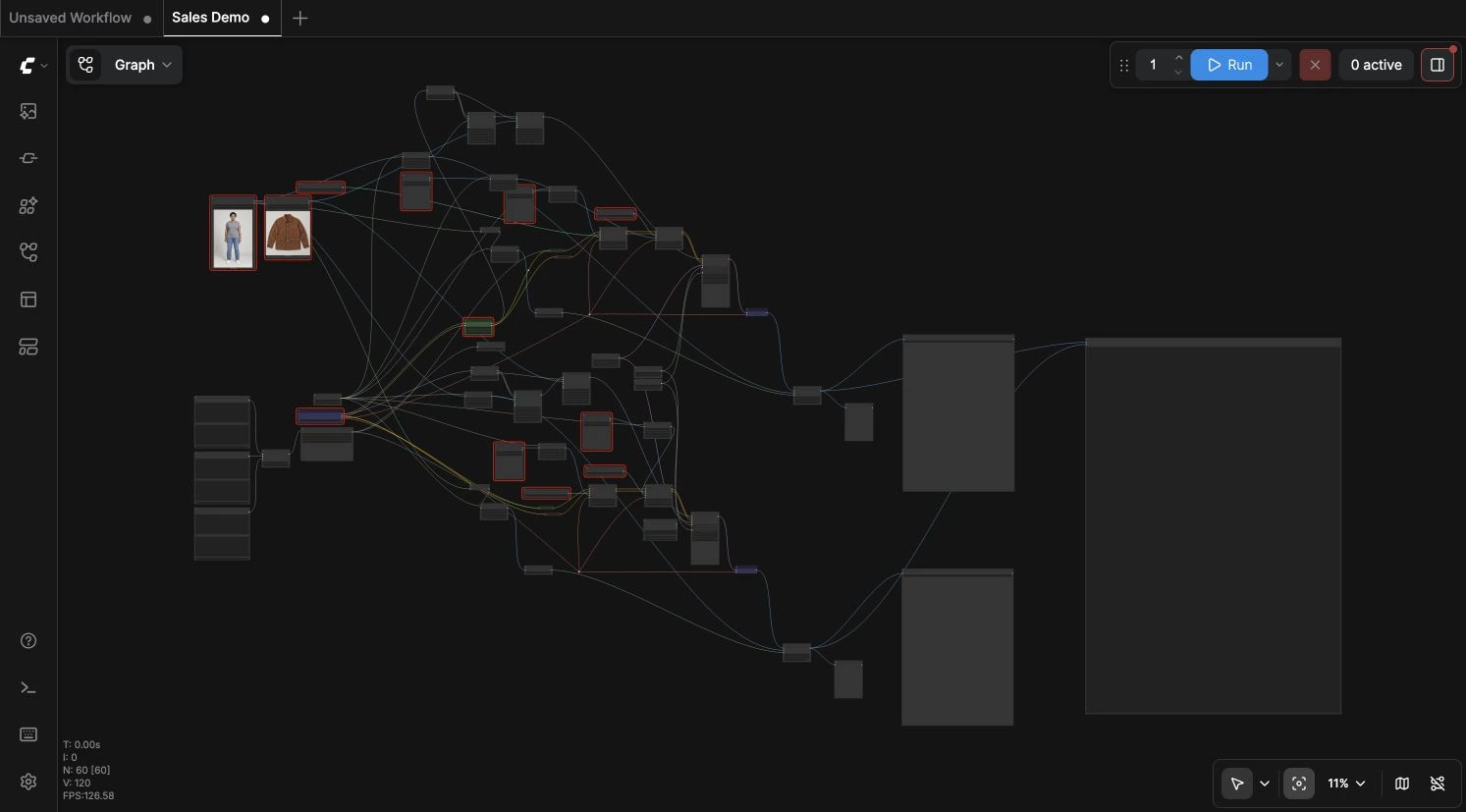
For the teammate setting things up
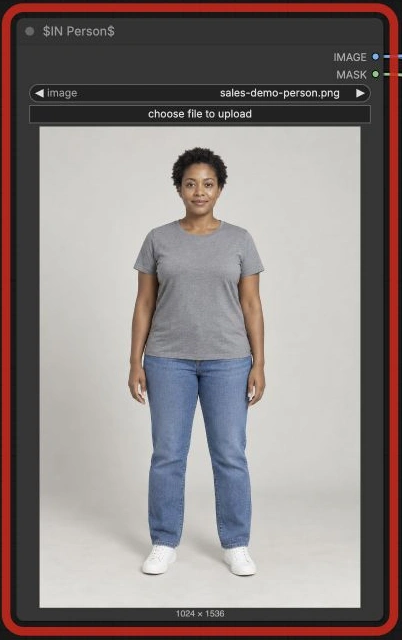
An artist should not have to guess which picture belongs in which part of a workflow. Name the inputs for the job they do: in this example, the builder labels the person input $IN Person$. SQUAD Studio turns that label into a clear place on the card to choose the person’s picture.
Exposing every technical setting can turn a creative handoff into another setup task. Give artists the choices they need for this job while keeping the underlying graph available to the builder. SQUAD Studio checks the input and output wiring before the workflow can run, and the builder still tests it on the intended ComfyUI setup.
Improve a tool without losing the version the studio relies on. Test changes in a draft, publish when ready, and return to an earlier published version if needed. Keep editing in ComfyUI and upload the next version. Retiring a tool preserves its record for earlier jobs and exports.
The artist’s view
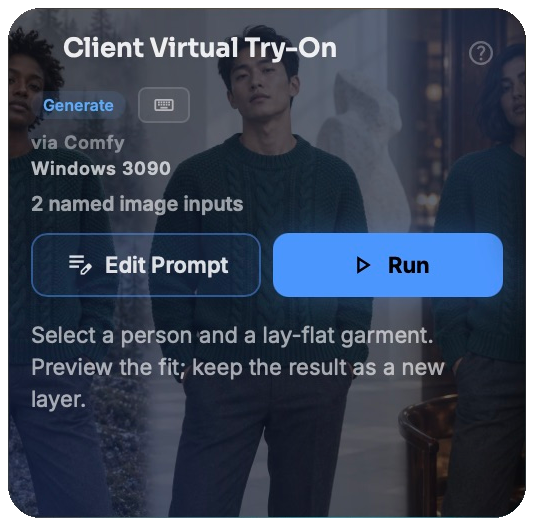
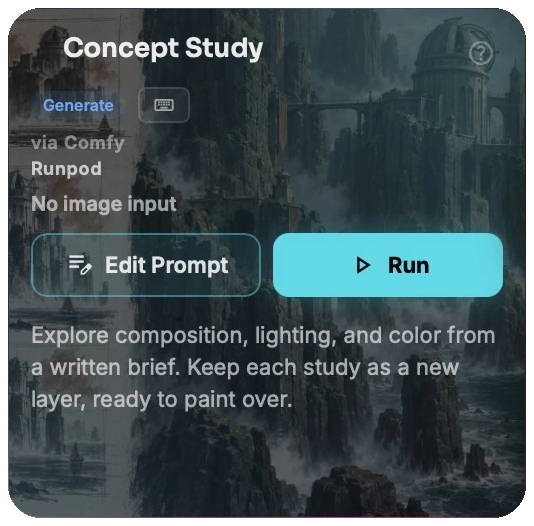
When the brief asks for a product scene or an outfit study, artists need to recognize the right tool by the job it does. Each AI tool, called a bot in SQUAD Studio, has a card explaining its purpose and the pictures it needs. The three cards below are examples prepared by a studio; Pro and Team can also add tools from supported image services.
For a try-on study, the creative decision is which person and garment to bring together. The prepared card gives you a place to choose each picture and returns the study to your canvas, where you can judge the look without working through the graph that made it.
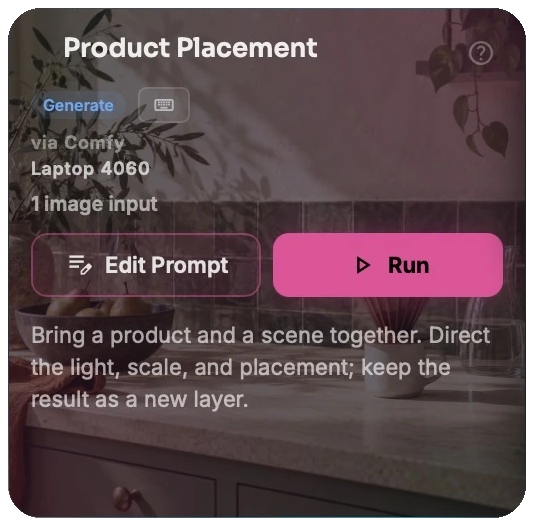
Show the AI what  you have in mind.
Words alone can leave too much open when the brief depends on a particular product, garment, or setting. Give the tool a visual brief alongside your instructions, so the pictures you chose can guide the attempt. Use a tool that accepts references; for ComfyUI, the builder prepares the matching named picture inputs.
Choose image layers or named reference frames for the brief. Text and vector layers need to become a regular picture first, an irreversible change. See how to choose reference pictures.



Illustrative product-placement study. One product picture, two directed settings.
Write the direction  once. Keep exploring.
Once you have found wording that gets a useful mood or treatment, rebuilding it for every attempt becomes its own task. On Pro and Team, save that direction in the Library under a short name such as /roomstate. Reuse it in the next prompt so you can spend your attention on what should change.
Compare golden-hour light, an overcast sky, and moonlight without rewriting the brief each time. Save alternatives for the bot to choose randomly or work through in order. A batch makes images one after another and lays them out in a row, grid, or stack for comparison.
Saved direction only helps if you can find it when the next brief arrives. Search by a description’s name or the words inside it, and preview what the bot will receive before using it. Included scene and people vocabulary gives you a starting point; on Team, your lead can choose shared collections for the studio.
A personal experiment should not change the wording your colleagues rely on. Copy a shared description into your own snippets and adapt it there. Team leads can update or retire shared collections while your personal copies remain available for your work.
Try the same brief with another tool without retyping it, or bring back an earlier run’s words from history. Your canvas remembers the last tool, and each tool remembers your chosen size and orientation, so you can pick up the next pass with less setup.
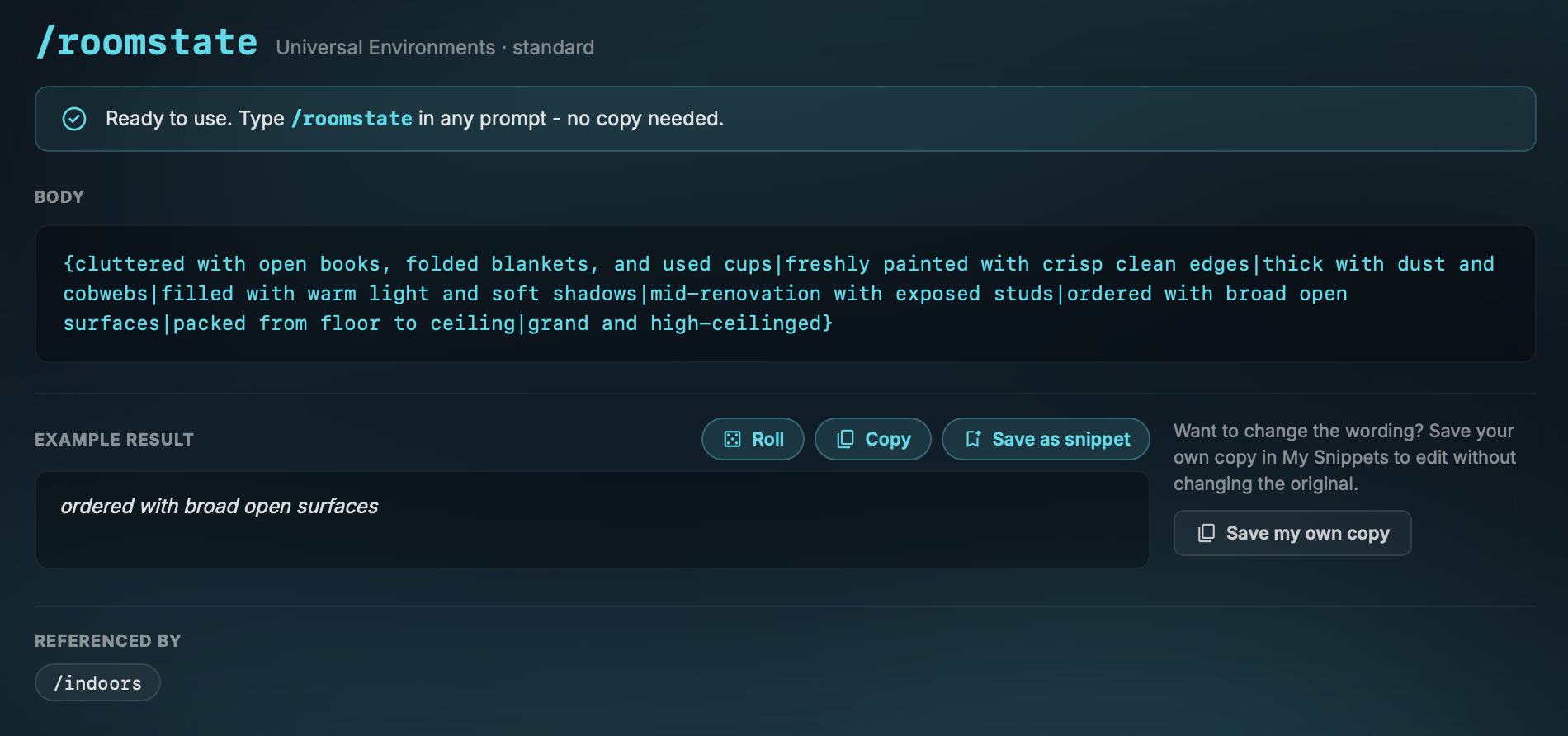
/roomstate, so you can check what your shorthand will give the bot before using it. View full sizeBring your image  tools together.
A prepared workflow will not be the right tool for every brief. On Pro or Team, you can bring supported image services into the same set of tools, giving artists another route when the job calls for it. Use your own service account and check what your studio needs to set up.
Available tools depend on your service and account. Check provider costs and plan details.
Add another service when you need it.
A long list of service options can leave artists unsure where to begin. An administrator chooses which supported image tools appear as cards, so the team sees the choices prepared for its work. When the service changes, the administrator can refresh that selection.
Use an eligible subscription
If you already use a supported image tool through a subscription, you may be able to bring it into this workflow too. Pro and Team can connect supported tools installed and signed in on your computer, with the provider’s limits and credit charges still applying. That connection belongs to the installation owner; it does not make a personal subscription available to the whole studio.
Keep your personal sign-in personal.
A connection problem should not quietly change which service handles your work. If an installed tool cannot run, SQUAD Studio reports the problem instead of sending the job elsewhere. The text-only desktop-app connection also keeps your sign-in in that app and does not accept reference images, so choose it for a written brief rather than a picture-led edit.
Keep the picture you like,  and how you made it.
The next attempt often needs one change to the prompt or a setting, not another search through separate screens. Open the card to bring its instructions and supported controls into one window, with a price estimate when one is available. Local tools show no cost estimate.
Waiting for an image does not have to stop the rest of the piece. Keep working while one panel tracks the runs and shows progress when the service reports it. Free runs one batch at a time; Pro and Team can keep up to five runs moving at once on a canvas. If a run needs your permission before sending work to a service, you can review and approve it in that panel.
Judge each result where it lands in your composition. Choose Keep to make it a layer you can move, paint over, or blend into the picture. If it isn’t the direction you wanted, dismiss it and try another prompt. You can also reuse the settings your chosen tool supports for another attempt.
See what imported images can tell you. See what goes to an outside provider.
Bring your image tools  to the canvas.
Have a workflow your colleagues would use if the handoff were easier? Download the beta and bring one task you want to turn into a clear tool for the creative team.
For Mac and Windows.