See your next idea. Make it your own.
Start with your drawing, logo, or a photograph you love. SQUAD Studio is a desktop workspace where you can use AI to explore a campaign idea, then paint and refine it until it feels like your brand.
Start with a 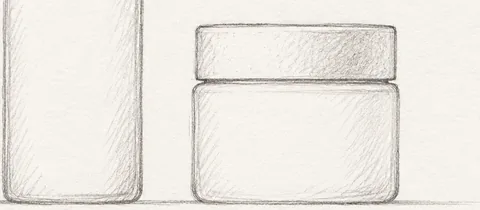 drawing

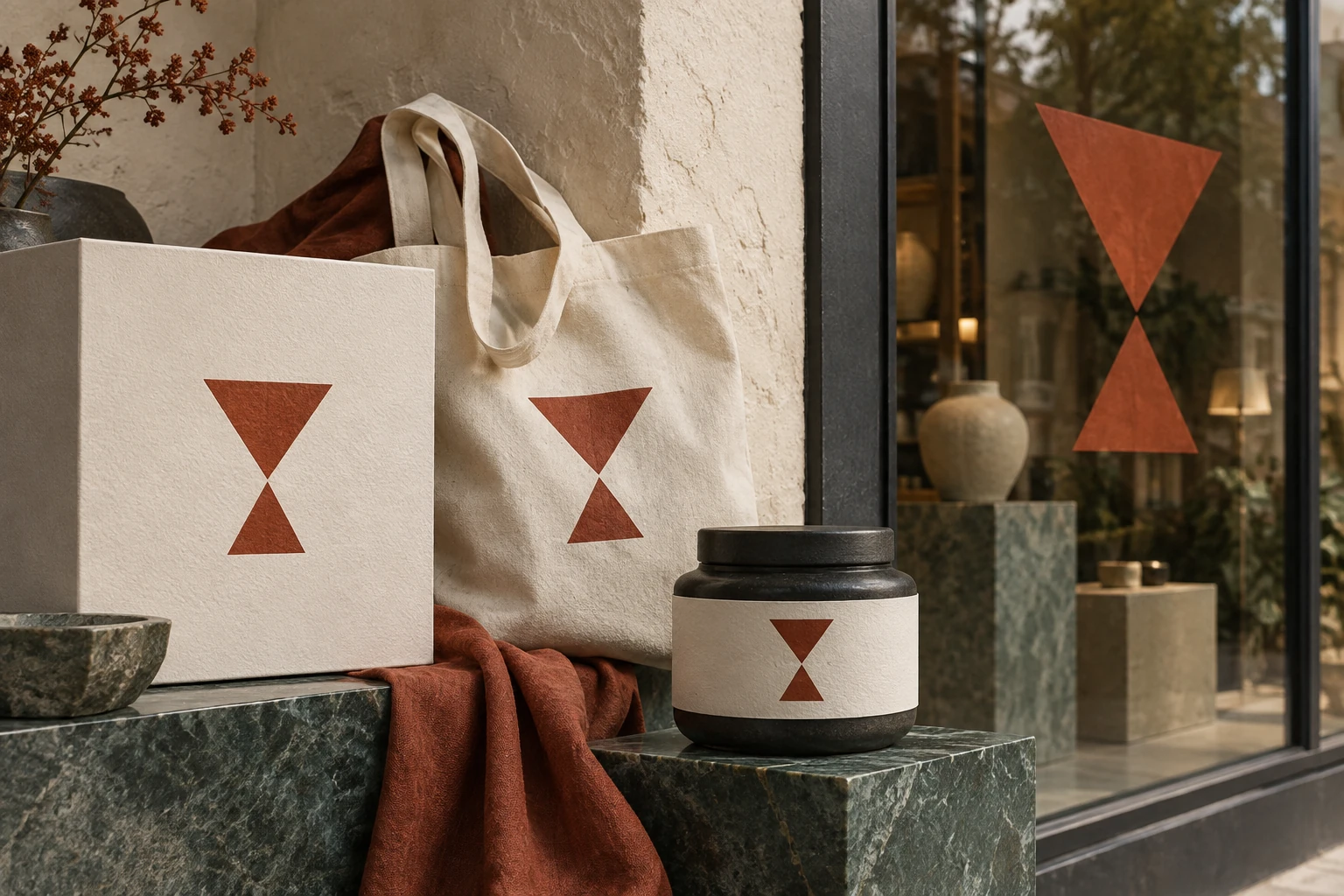
The tall bottle and wide jar already have their proportions in this pencil sketch. You can give the idea a clear starting point before making polished artwork.

Glass, cream packaging, and pale stone turn the outlines into a product proposal. Made in SQUAD Studio, it gives you materials and shapes to judge before refining the brand.

The leaf logo moves onto the bottle, giving you a branded version to compare with the first proposal. Made in SQUAD Studio.
A campaign can start with a few lines on paper. Put the drawing and a packaging example on the canvas, your open workspace for pictures and ideas. Choose them as visual guides and describe what you want. Here, AI uses those starting points to make a realistic image of the bottle and jar.
Next, use that image and the logo to ask for the leaf design on the bottle. Each result stays separate from the originals, ready to compare or paint over.
Keep the idea’s 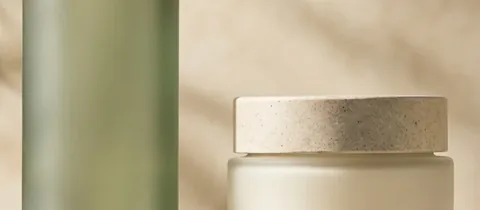 history
Pick up where the idea started
Made inSQUAD Studio
The bottle’s prompt and reference pictures stay beside the result.
You can see how the drawing and logo shaped it, then reuse those starting points for the next attempt.
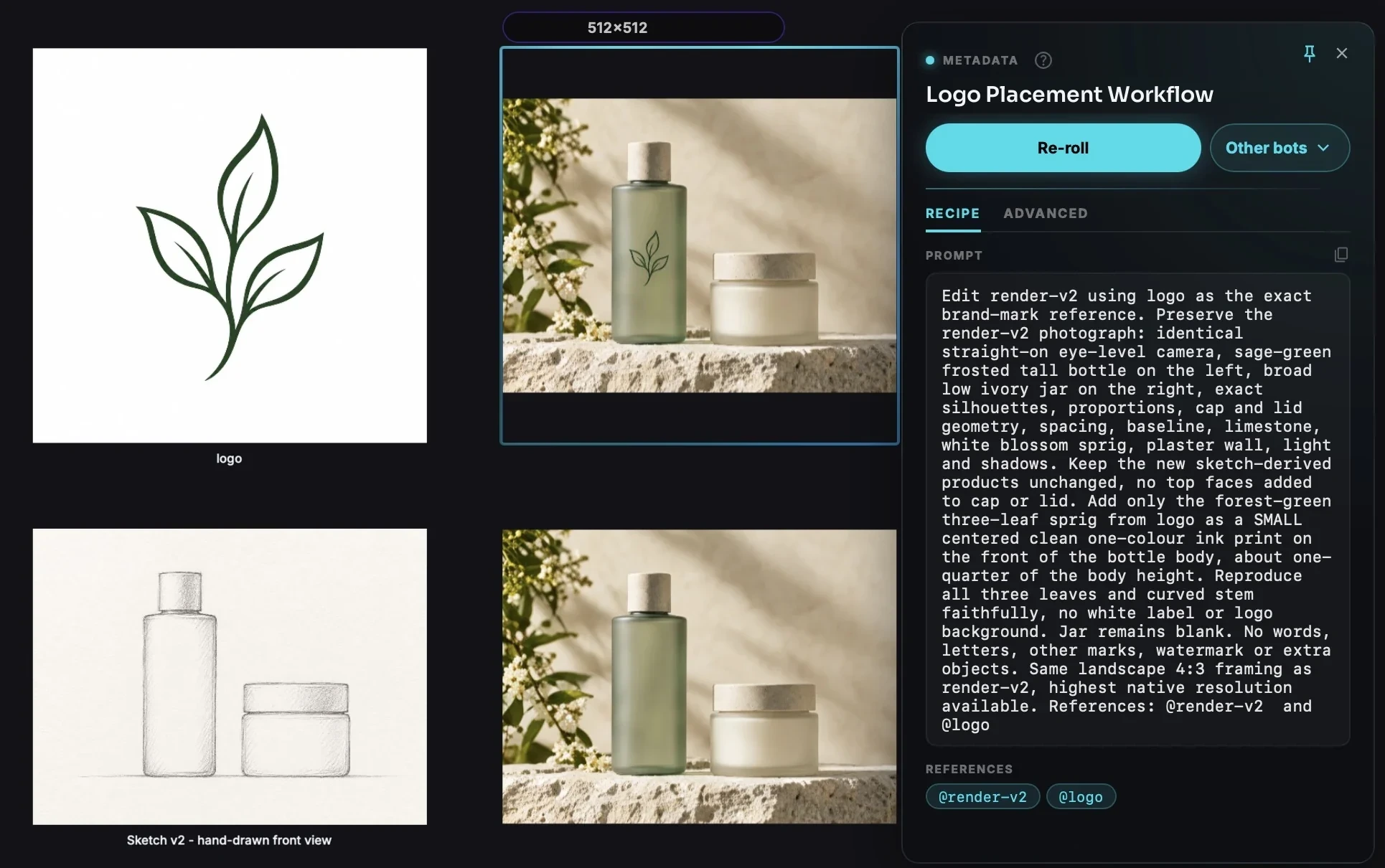
Pick up where the idea left off.
When someone asks how you made the image, the answer is right beside it. SQUAD Studio keeps the instructions and pictures used as guides, the tool and settings used, and who made it and when. Open those details to see how the drawing and logo shaped the result.
If the team wants a different look, reuse those instructions and adjust them. Try another image tool or paint the change yourself. Each result sits on its own layer, a separate piece you can edit without painting over the original.
Bringing in a PNG from elsewhere? SQUAD Studio can read prompts and settings saved in supported files. When it finds a prompt, reuse the words in a bot; a recovered negative prompt comes along for tools that support it. The original settings stay visible for reference, not as a working setup.
Put your own  mark on it
Place your logo with your hands
Logo placementRotation, blend and color
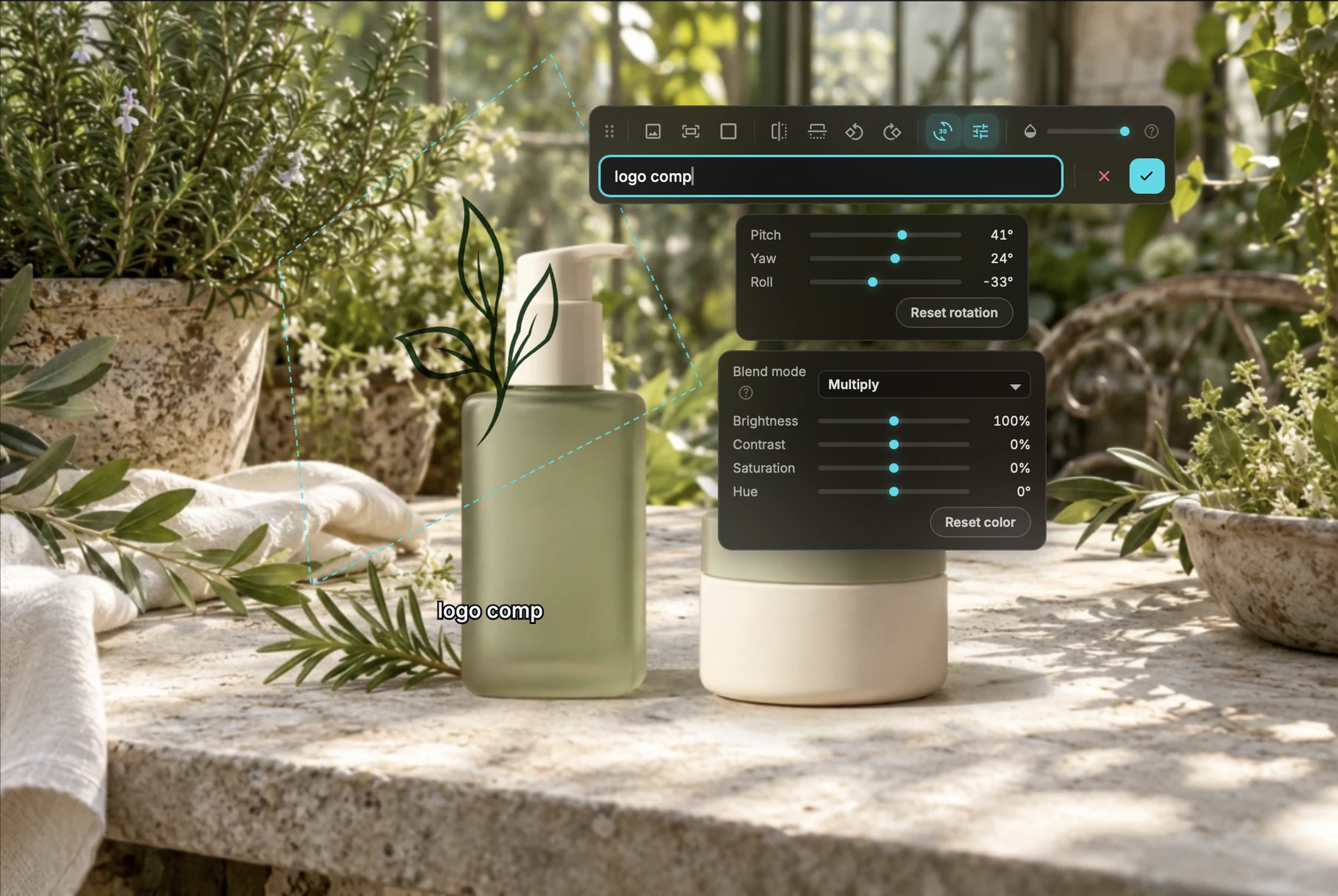
Use 3D rotation, Multiply blend mode, and color controls to settle the leaf logo onto the bottle, so a placement adjustment doesn’t need another generated attempt.
Make the mark sit right on the product.
Place your own logo or mark on the product image. Tilt it in 3D to follow the surface, then blend it into the picture. You can make those adjustments yourself, without waiting on AI.
Use the pitch, yaw and roll sliders to find the angle. Try Multiply to blend the logo with the product beneath it, then adjust brightness, contrast, saturation and hue until it fits the scene.
On Pro and Team, keep favorite brand wording in the Library too. A short name like /roomstate brings it into your next image instructions. See Library plan options.
Review it  together
Give the next revision a target
Canvas feedbackStickers, markup and pinned notes
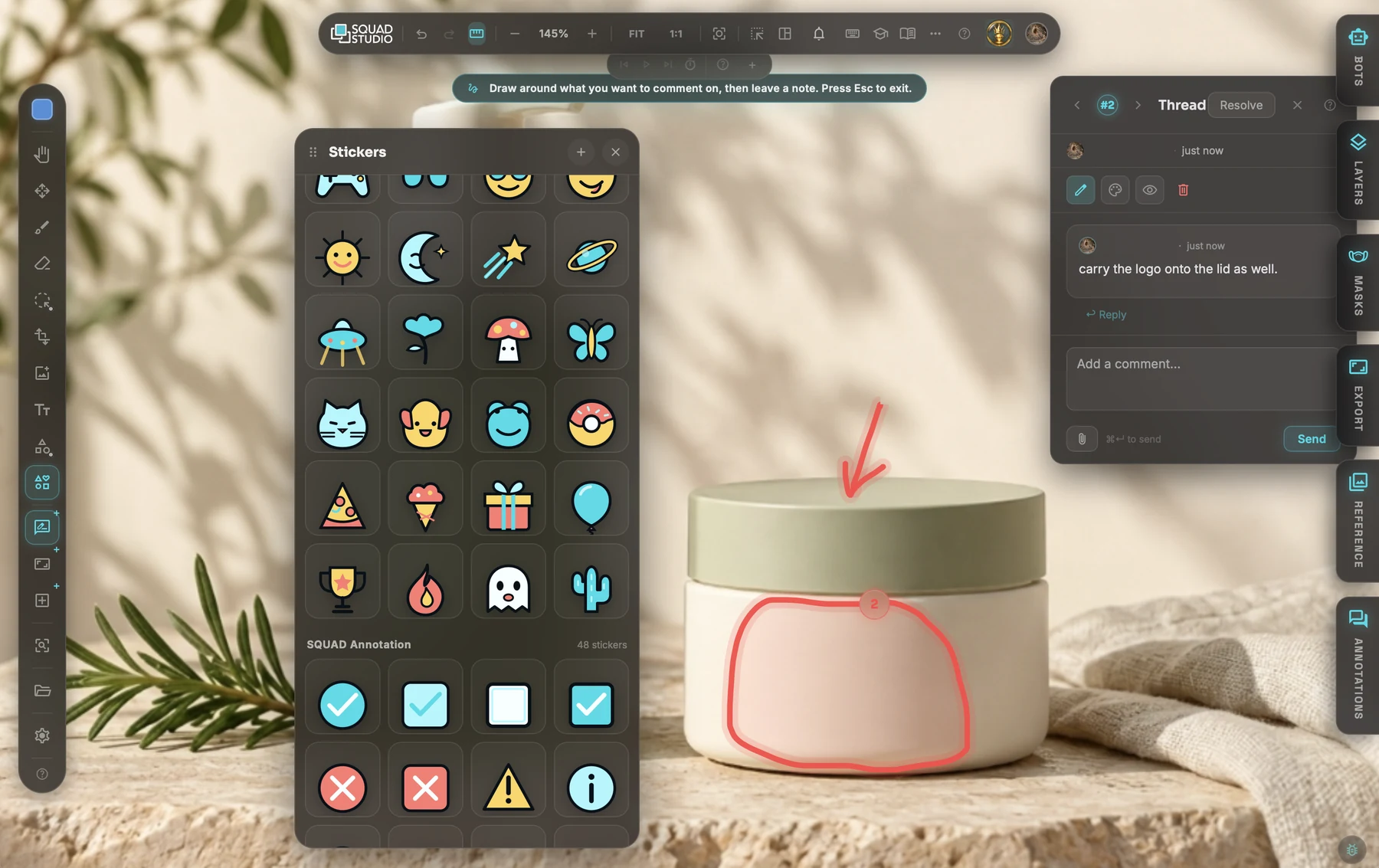
The arrow points to the lid, and the pinned note asks for the logo there too. On Team, that shared feedback keeps the requested change beside the product.
Show each other what you mean.
With the Team plan, you can work on the same canvas at the same time and see where each person is pointing. Draw an arrow, circle a detail and pin a comment, so the designer knows exactly which part you mean. Replies and notifications keep everyone in the conversation.
The designer can ask AI to try a change in that area or paint it by hand. The original stays intact, giving you room to compare and decide together.
Ready to bring the team in? Choose who can join the project and which tools they can use. Choose where the work runs and what leaves your studio.
Choose what your picture 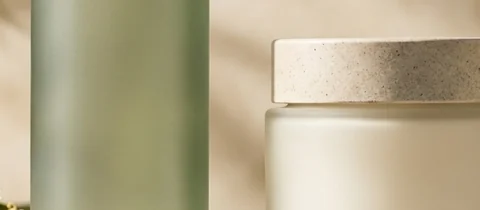 says about its making.
Share a record of how your picture was made. Pro and Team can include creation details in PNG and JPEG exports.
SQUAD Studio supplies no certificate or trusted badge; WebP is not supported. Separately, hidden AI instructions stay out by default. Choose to include one source picture’s instructions in a PNG, but not a composite of several layers. Neither setting copy-protects the picture or changes files already shared.
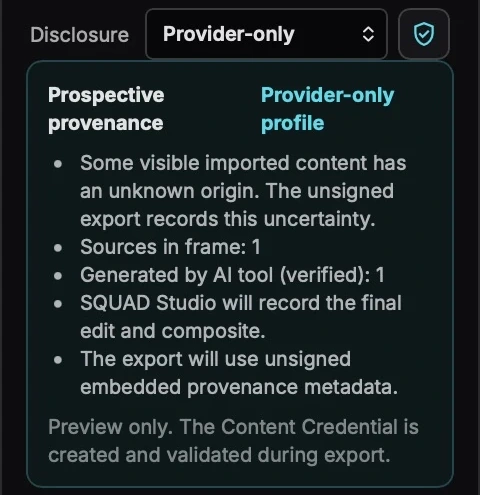
On Pro and Team, the export preview identifies unknown origins and unsigned details, so you can review the creation information you’re sharing before the image leaves your studio.
- Your signing certificateYour studio supplies its own
- Hidden AI instructionsLeft out by default
Save for Instagram. 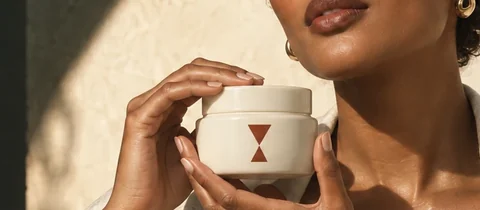 Skip the resizing.
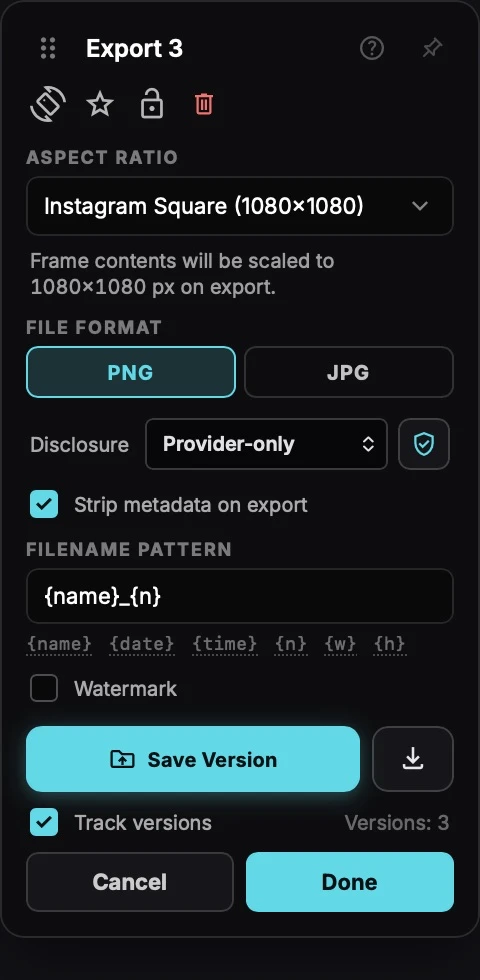
Take the campaign from the canvas to the sizes you need. Keep the artwork intact and let each export frame set the size of the saved picture.
Place an export frame around the area you want to share. Choose a preset such as Instagram Square or set your own dimensions, and SQUAD Studio handles the resizing when you save. Exports can reach 16K when your computer supports the size.
Save the finished picture in a project folder beside its canvas. Add a visible draft label while it is still a work in progress. On Pro and Team, switch on version tracking for an export frame to keep earlier saves, ready to revisit when the team wants another look.
Your source artwork keeps its original size. Finished-image export works on every plan.
Instagram Square sets the frame to 1080 × 1080 pixels, so the image you save has the dimensions you chose while your source artwork keeps its original size.
A bigger image, without the trip to another tool.
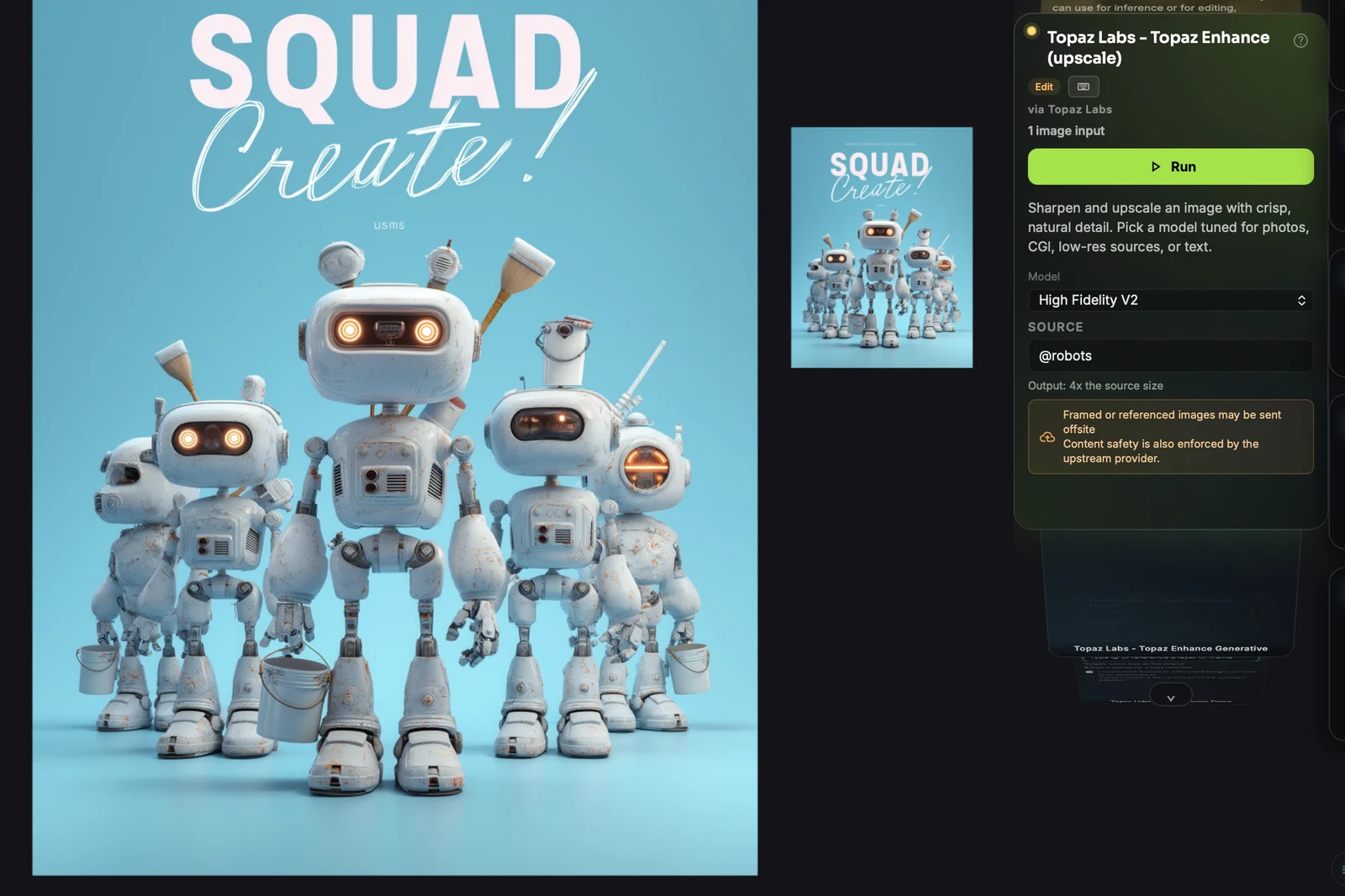
Exporting an image, opening a separate upscaler, then bringing the bigger file back and fitting it into the layout again takes you away from the campaign you’re creating. In SQUAD Studio, you can upscale right on the canvas in one step, beside the rest of your work.
On Pro and Team, connect your own Topaz Labs API key. The larger result returns to your canvas, ready to work into the campaign, so you can keep developing the direction you like.
You pay Topaz Labs directly for its usage. SQUAD Studio adds no charge per image.
- Project foldersKeep finished pictures beside canvases
- Every planSave your finished images
Have a campaign 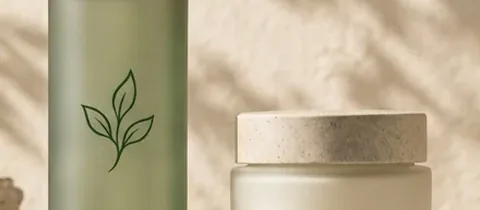 in mind?
Download the beta and make yourself at home. Bring the campaign you want to explore and the pictures that give it a starting point.
Free gives one creator a project with unlimited canvases, layers, brushes, and finished-image export. Bring your pictures and start shaping the idea. Compare plans and image-making costs.
For Mac and Windows.