Direct the art. Build your world.
Start with a sketch of the character you see in your head. Use AI to explore it, then paint the details that make it yours. SQUAD Studio keeps the sketch, pictures that guide the AI, and new ideas together in a desktop workspace, with shared creation and review on Team.
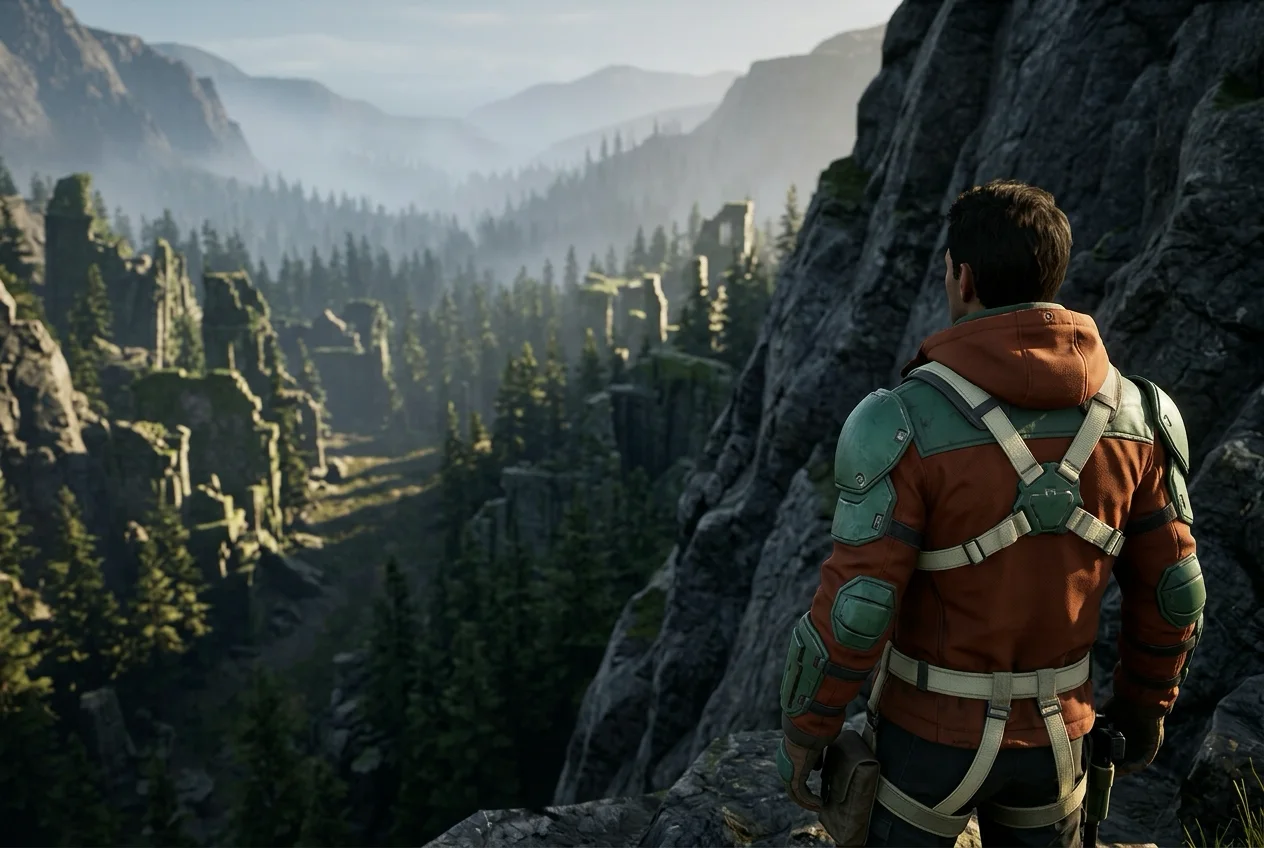
Let the sketch  set the direction.
A written character brief can lose the gesture that made the idea worth pursuing. Keep your sketch as the starting point: a few loose lines can show the pose, the coat, or the weight of a backpack. Give it to an AI tool prepared for the task, along with pictures of the look you want, then use the result as material for your own painting.
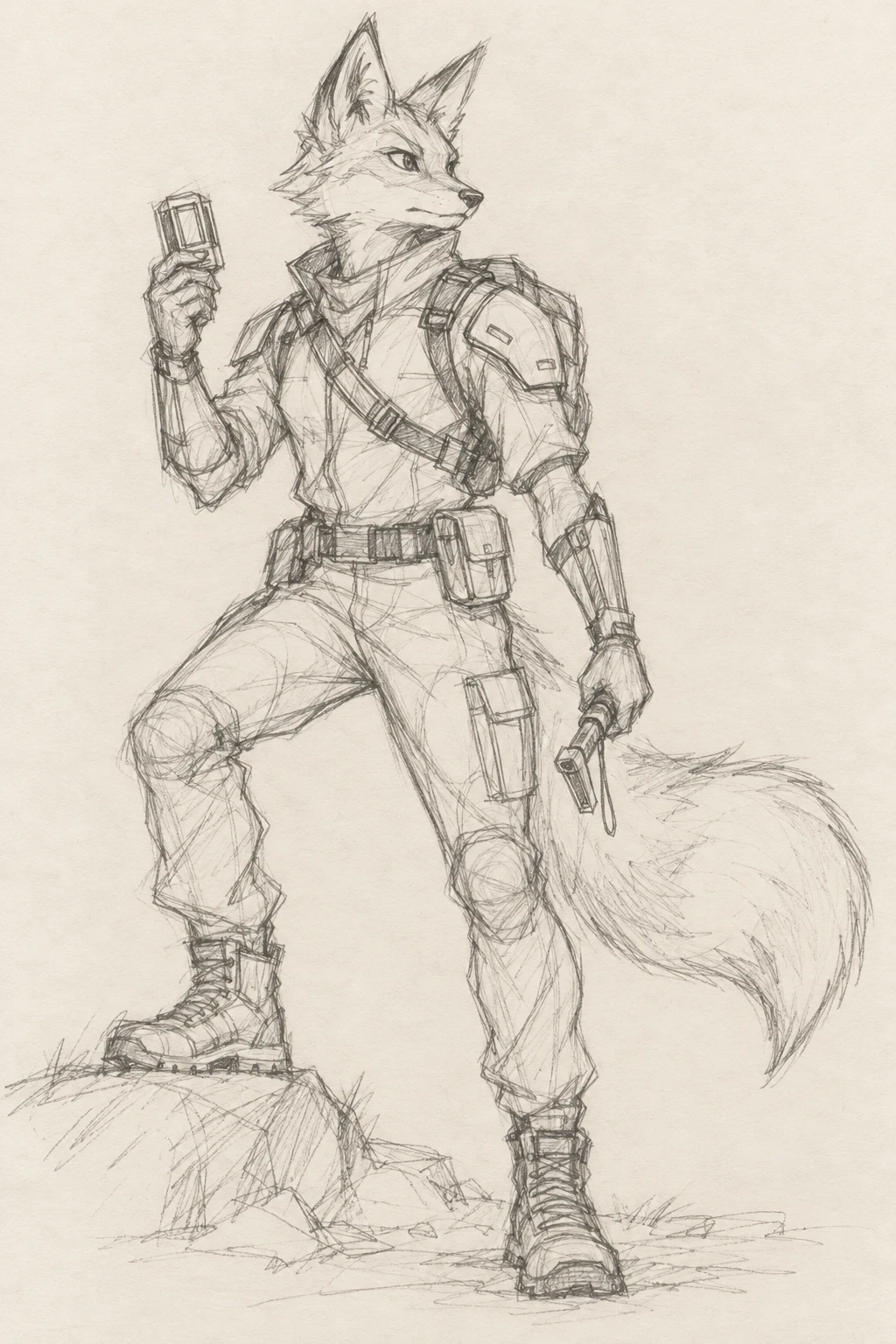
The starting drawing
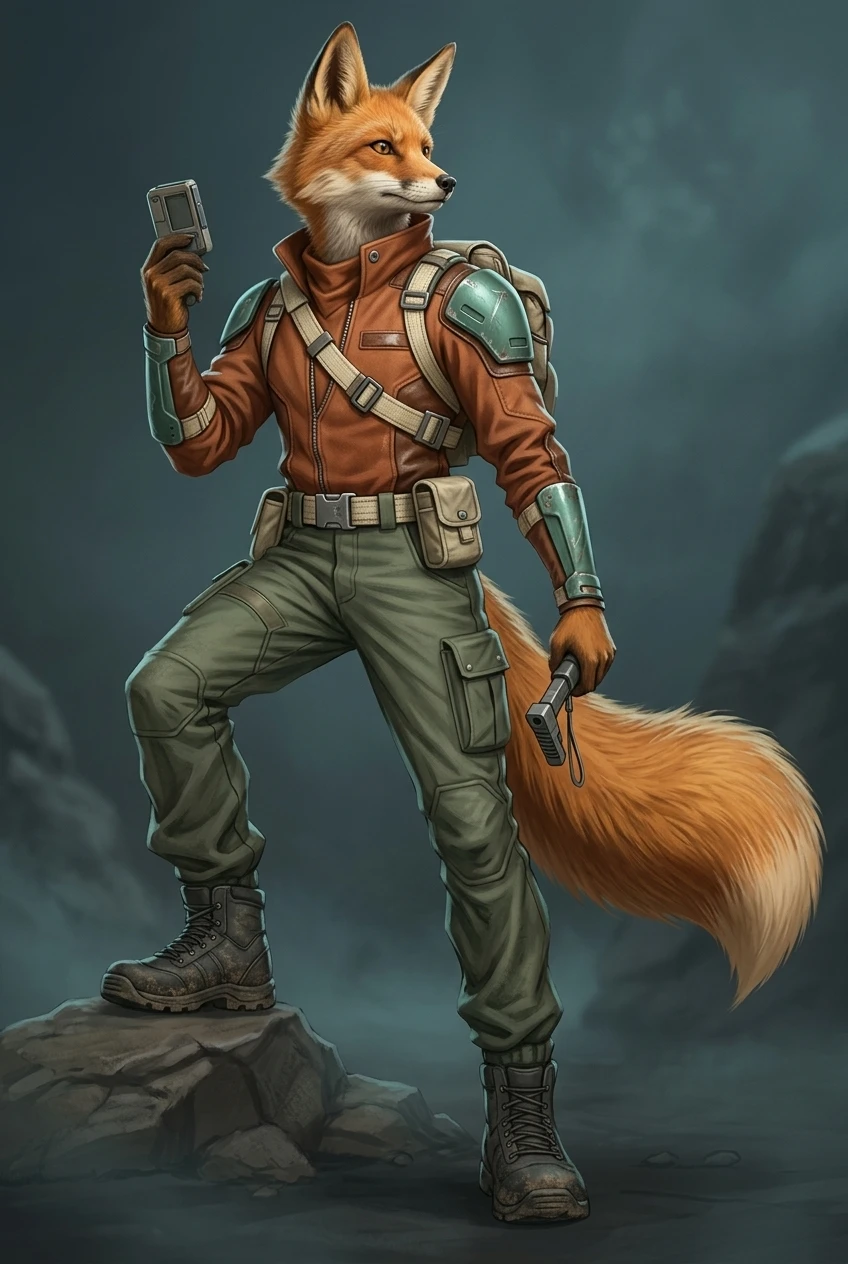
Made in SQUAD Studio
A promising character can still have a weak silhouette, unclear lighting, or details that distract from its role. Paint stronger light and shadow, soften a rough edge, and decide which parts belong before the concept moves on. Explore the canvas brushes and their limits.
Give the cast a 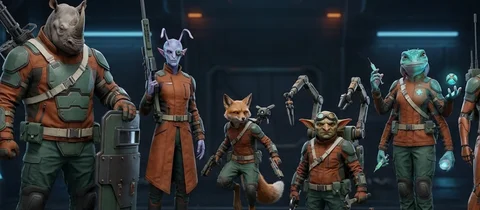 shared starting point.
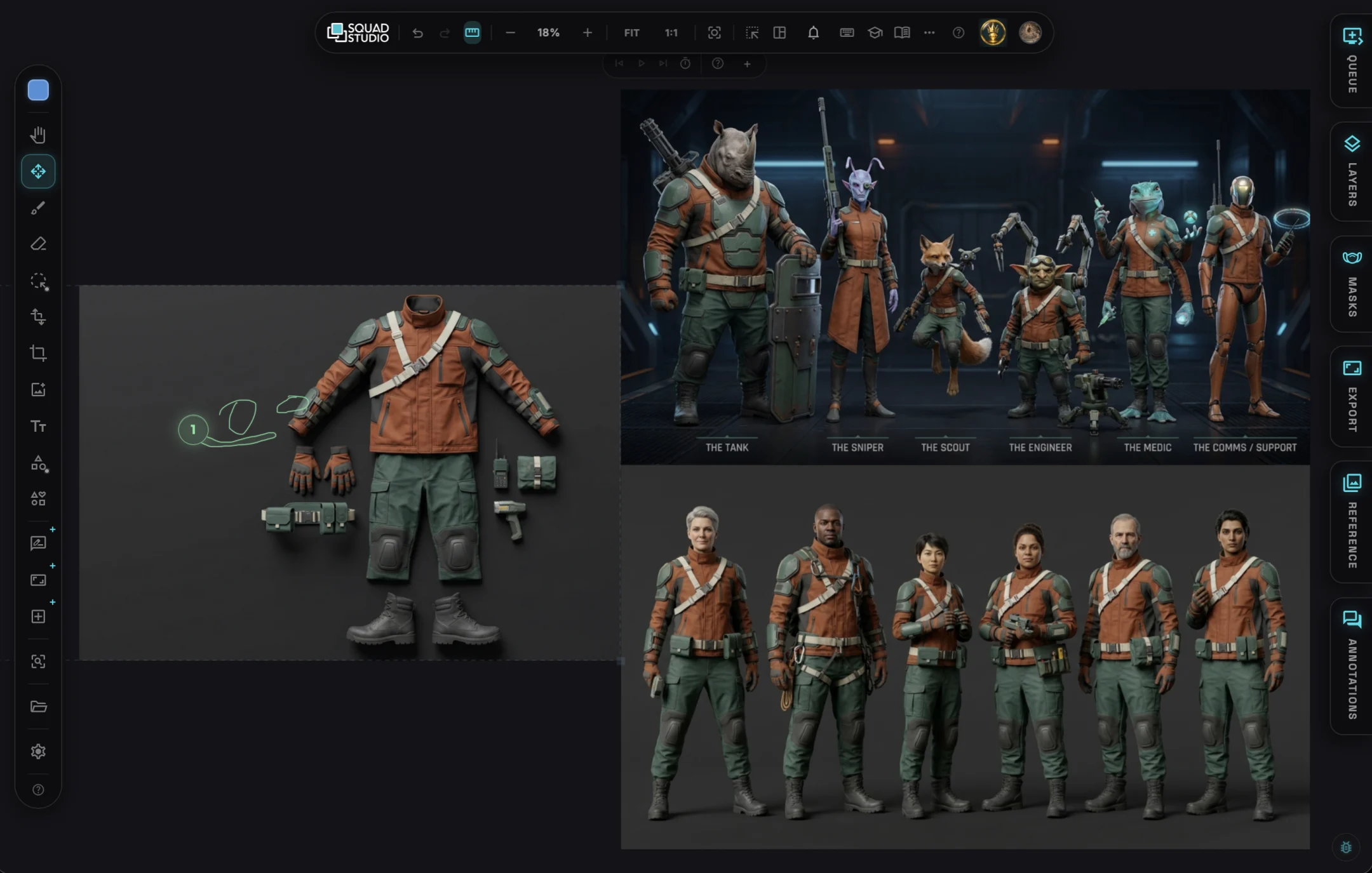
A cast can share a color palette and still look as though each character belongs to a different game. Start from a visible kit of clothing and equipment, and use that picture to guide each attempt. Here, one expedition kit anchors a varied cast, giving you something concrete to compare as you refine the designs.
Try a different cast. Keep the kit nearby.
Different species and body shapes will interpret the same kit differently. Keep the outfit beside the cast as you judge the proportions, equipment, and materials, so you can decide which variations strengthen the world and which need another pass.
As the cast grows, earlier design choices need to stay available for comparison. Free lets you arrange those studies side by side; if you also want to carry the written direction into another attempt, the Library on Pro and Team keeps reusable descriptions. Compare Library options.
Reviews happen on 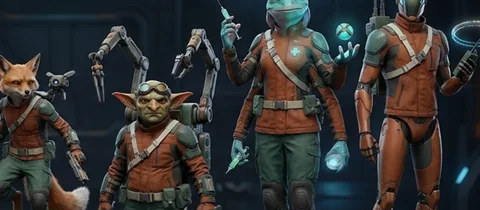 the artwork.
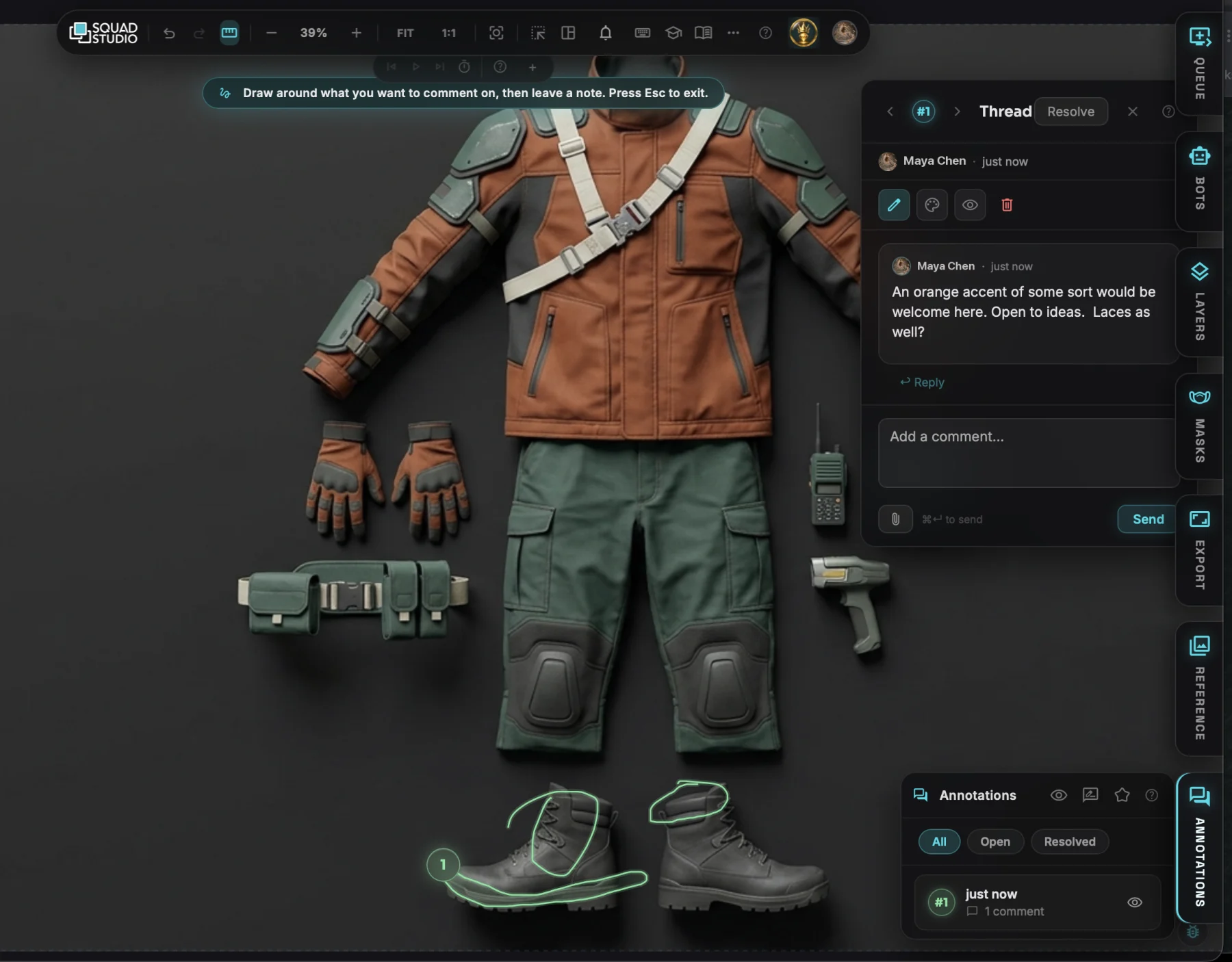
A note such as “change the boots” can leave the next artist guessing whether you mean the shape, color, or construction. With Team, mark the part that needs attention and leave the instruction beside it, so the revision addresses the design you meant. See how the review stays with the artwork.
Take the finished picture 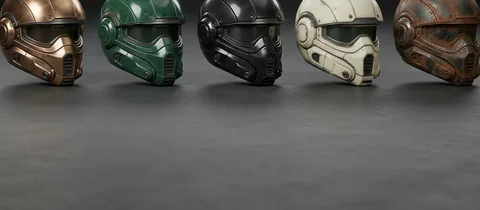 into your next step.
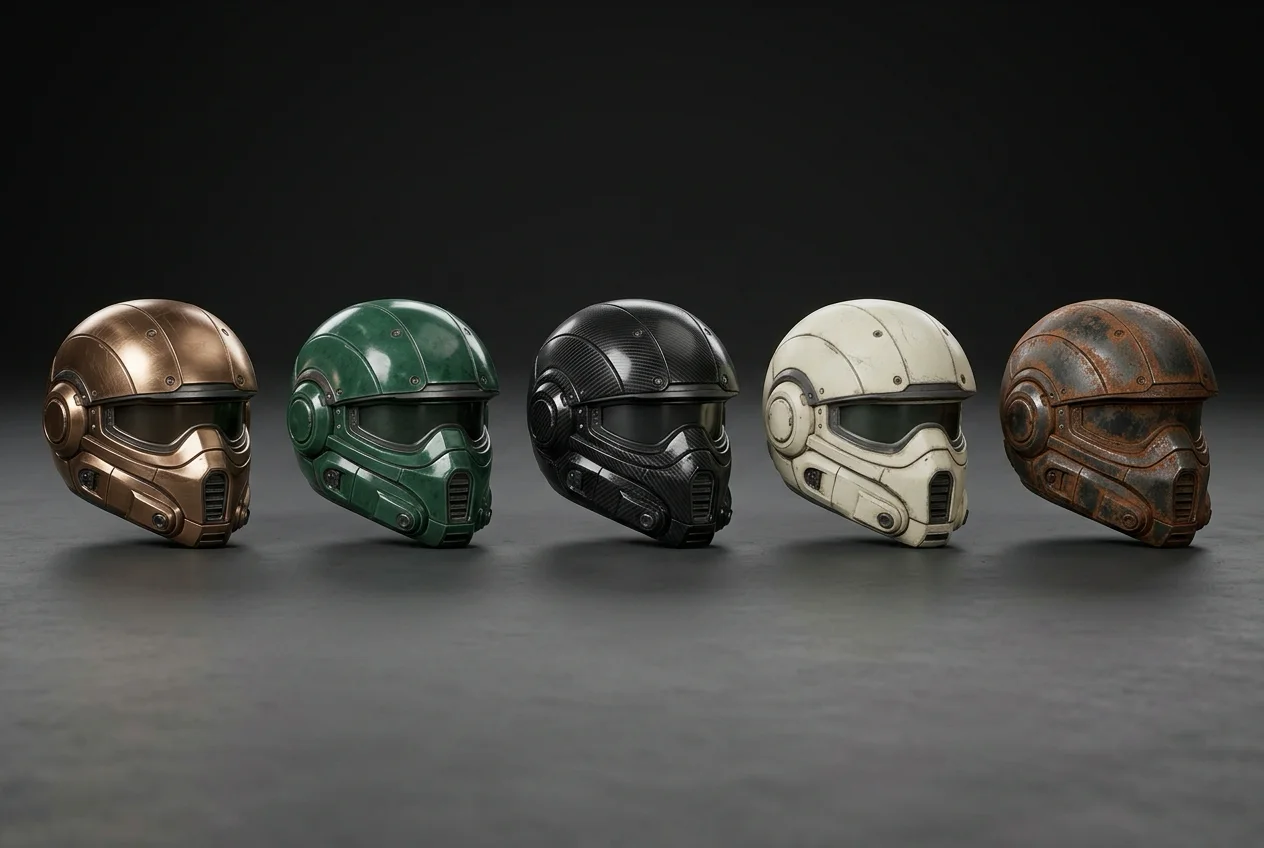
When a costume detail or material is left open to interpretation, the misunderstanding can travel into the asset build. Use the finished concept to make those choices visible before the handoff, giving the people building the asset a clear picture of the design, materials, and mood you intend.
SQUAD Studio creates 2D artwork. It does not export directly into a game engine or create a 3D asset. Bring the finished image into the art tools or asset library you already use. See how to save a finished picture.
Bring the character you 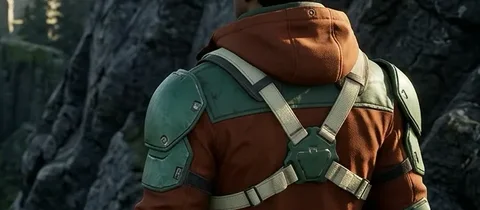 want to meet.
Bring a character whose pose, kit, or materials you want to resolve before the asset build. Download the beta and try developing that direction from a sketch into a picture the next artist can work from.
Start a solo character study on Free. Compare plans and image-making costs
For Mac and Windows.