Keep the detail. Shape the picture.
Your photograph should not have to shrink to fit an AI tool. SQUAD Studio gives photographers a desktop workspace to keep the original intact, develop a detail on layers, and review the result together on Team.

A small AI frame.  Your whole photograph.
Shrinking a large photograph just to change one detail gives up something you worked to capture. Keep the original at its natural resolution and place a bot frame over the part you want to develop, whether that is an object on a table or a small change in a portrait.
A bot is a prepared image tool. It works inside the frame at the size its workflow supports, then returns the result to that spot on a separate layer. The surrounding photograph stays intact, with room to judge the change against the whole composition.
On the Canvas page, a 14,662 × 9,774 pixel photograph stays full size while a leaf becomes a butterfly. Larger edits can develop in 1024 × 1024 pixel passes. Follow the whole-photograph walkthrough.

Ordinary portrait work.  Room to carry on.
A maternity portrait or a swimwear shoot should not turn an ordinary editing day into a search for a tool that will accept the picture. Choose image tools suited to the work you make, and keep your studio’s own checks in your hands.
On Team, optional in-house checks let your studio decide what to allow, flag, or stop. Try your own pictures and written instructions, observe what gets flagged, and tune the limits before enforcing them. You can also leave those checks off. An outside image service still applies its own rules.
The choice needs to fit the client as well as the photograph. See what leaves your studio on an outside run, or read how your technical teammate prepares the checks.

Keep your hand 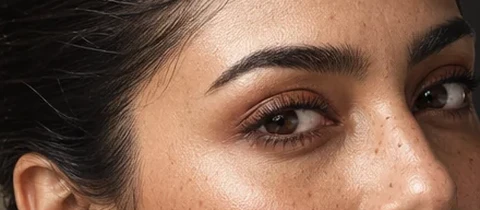 in the finish.
An AI result can have the right idea and still need your eye. Before moving the picture into a separate retouching tool, paint the detail, soften the join with a mask, and adjust the new layer until it belongs beside the light and texture you captured.
Brightness, contrast, saturation, hue, and blend modes stay editable on the layer. Hide it to compare with the original, then keep refining without painting over your source. You decide how much of the new treatment the photograph needs.
Some pictures still need the fine control of a specialist photo editor. Keep that trusted finishing stage when the job calls for it. Export the composed picture as a flat image and continue there; the handoff does not carry an editable layer stack.
Prepared bot cards give you the controls chosen for the job, so using a tool does not mean learning the graph behind it. Direct image API connections require Pro or Team. See how a prepared image tool reaches your canvas.
Make the next revision  easier to see.
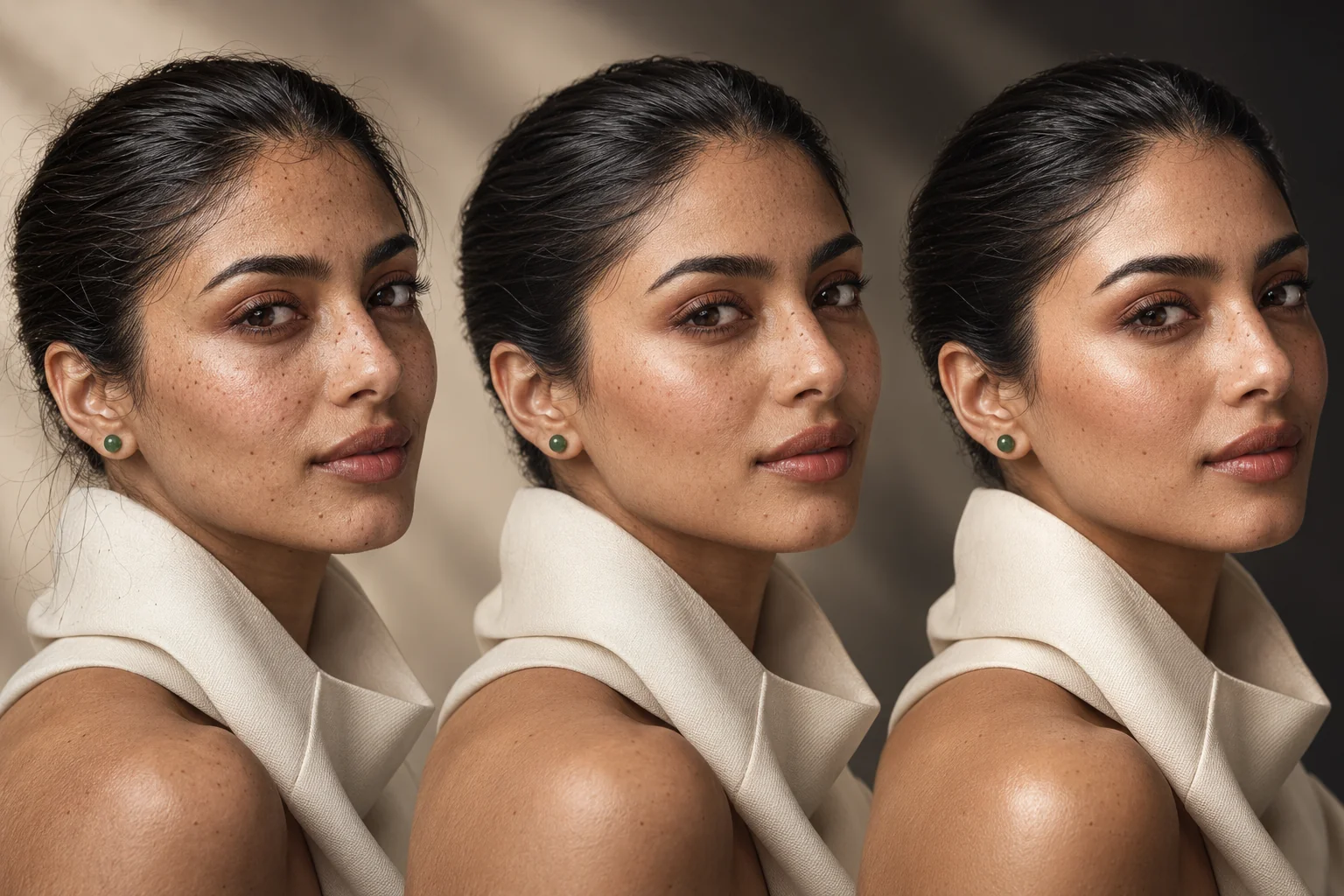
“A little warmer” is easier to act on when everyone is looking at the same face, fabric, or patch of light. On Team, bring your studio colleagues onto the canvas, point to the detail with a temporary drawn mark, and pin the conversation beside it. Replies and notifications keep the discussion with the work.
Keep the selects together so you can judge the series as well as the individual photograph. A change that suits one image may need another look beside the rest of the shoot.
For client review, export the pictures and use your existing handoff and approval process. Add a visible draft label while the work is still in progress, then leave it off the final. Shared canvas review is a Team feature; finished-image export is available on every plan.
On Pro and Team, turn on version tracking for an export frame to keep earlier saves. Revisit a previous version, or compare the latest with the one before it when a client asks what changed. See how the studio reviews together.

Bring the photograph  you want to develop.
Download the beta and make yourself at home. Bring a photograph with one detail you want to change, a finish you want to explore, or a revision you would like to work through with your studio.
Free gives one creator a project with unlimited canvases, layers, brushes, and finished-image export. Pro adds direct image API connections and saved-deliverable version history; Team adds shared creation and review. Find the plan for your way of working.
For Mac and Windows.