Your work. Your choice of where.
Keep private image-making work on your studio’s computers, use a larger rented machine, or connect a supported online image service. SQUAD Studio brings the results to your canvas while you choose the setup and keep control of your project storage.

Where would you like 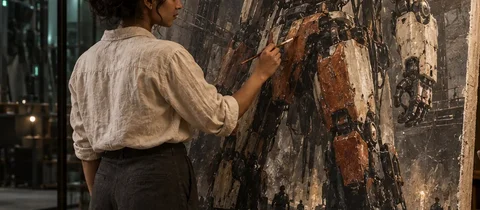 to make your images?
On your own computers
When a brief requires the image-making work to stay inside the studio, an outside service may not be an option. Connect ComfyUI, software for running prepared AI image tasks, on your computer or studio network. With an entirely local setup, your instructions, pictures, and results can stay in-house.
On a larger machine you rent
Some image tasks need more memory than your computer has. Run ComfyUI on a suitable rented machine and connect it to SQUAD Studio. The artist can keep using the same prepared tool on the canvas.
With an online image service
Maintaining generation hardware may be more than your studio wants to take on. On Pro or Team, a supported online image service gives you another way to make images, with the service handling that infrastructure. You pay providers directly; SQUAD Studio adds no charge per image.
Keep the setup  your studio knows.
Adding a creative workspace should not mean rebuilding the ComfyUI setup your studio already runs or rents. Connect that setup to SQUAD Studio and let artists reach it through the studio’s server. Each person can use the prepared tools without arranging a separate connection to the image-making computer.
If different tasks need different machines, the studio needs a clear way to send each one to the right place. Free saves one connection that you can change when needed; Pro and Team keep several ready and remember which workflow runs where. Your team still prepares and maintains those machines with the software, AI files, and memory the work requires.
ComfyUI manages the AI files used to make images. SQUAD Studio connects to it without downloading or managing those files. See how a prepared task becomes a tool artists can use.
Your storage  stays yours.
Your project archive needs to fit the way your studio stores and looks after its work. SQUAD Studio keeps projects on your computer or in storage your studio controls, with a simple setup for a small team and customer-owned storage options for a larger one. Squad Create, Inc. handles your license and billing, not your artwork or project files.

Know which part of  the picture leaves.
A studio policy about outside processing needs to guide the route before an artist runs a job. Keep restricted briefs on an entirely local setup, and use an outside service only when its terms and data handling fit the work. Review exactly what an outside image service receives before choosing that route.
See how to choose an area
Your studio sets  the boundaries.
Ordinary maternity portraits and swimwear photographs can be flagged by generic safety systems. On Team, you can test optional checks against your studio’s work, flag concerns for a person to review, and decide what should stop a job. See how that applies to portrait and swimwear work.
Written-instruction checks can run on company computers. Turn on result-image checks separately for each supported connection when you need them. You can also leave the checks off. If you use an outside image service, its own rules still apply.
Choose the checks your work needs.
A check suited to one kind of work may not suit your studio’s pictures or languages. With the person who manages your studio’s computers, review what each check covers, its terms, the hardware it needs, and whether any content leaves your studio. Only the checks you select are downloaded, with exact versions verified.
Setup and updates need an internet connection. After that, everyday checking can stay in-house. Outside safety services are available to browse, but cannot yet be turned on. See plan features and current limits.
Decide when work should pause.
A new content rule can interrupt legitimate work if you enforce it before seeing what it catches. Observe the results first, then set limits for each category and choose whether a check enforces them, continues observing, or ignores that category. That gives your studio a way to assess the rule before it starts stopping jobs.
If a required check cannot run, work pauses by default. The person managing your studio’s computers can allow work to continue through a connection outage only if the remaining checks still meet your studio’s rules. That exception is recorded. For checks set to enforce, setup, sign-in, or verification problems still stop work. Observe-only checks record failures without stopping work.
Tune them to the pictures you make.
Try your own maternity portraits, swimwear photographs, and written instructions before a check can stop anyone’s work. Review results against your current rules, adjust the limits, and try again. Save samples to check against later, and verify that each selected check can actually score them.
Give a person the chance to review.
When a check flags legitimate work, the reviewer needs enough context to resolve it. Review the flagged material, the checks that raised the concern, and the notes beside it, then confirm the concern, mark a false alarm, or ask for another review. You can export the safety history as CSV when your studio needs a record.
Make room for your  studio’s way of working.
If your studio has a setup or content policy a new tool needs to fit, bring it into the conversation. Download the beta and tell us how you run image-making work today so you can assess where SQUAD Studio belongs.
For Mac and Windows.