
See the whole idea. Refine the detail.
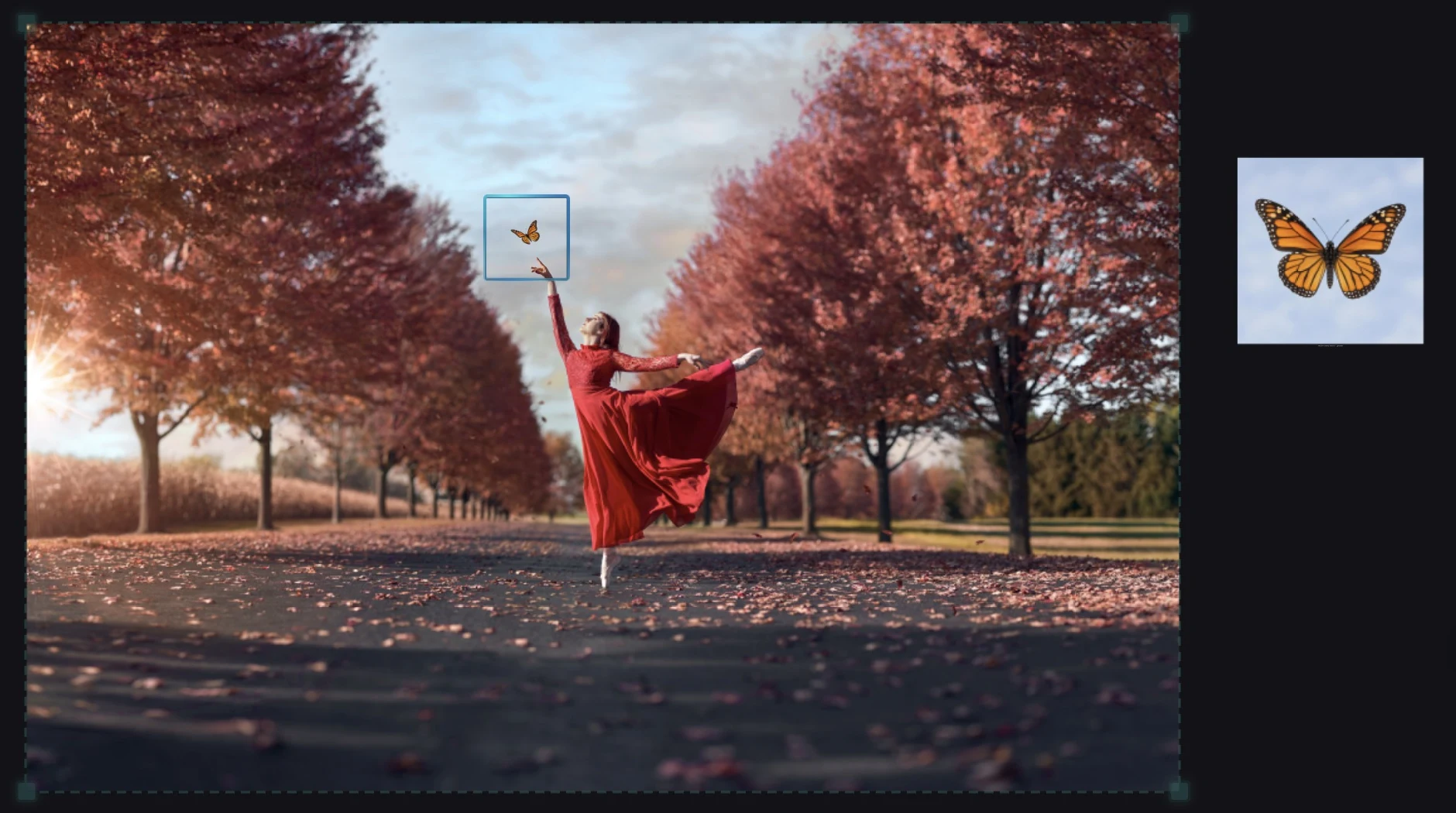
Bring in a full-size photograph and let AI change one detail while the rest stays original.
A new way for photographers to explore what’s possible.

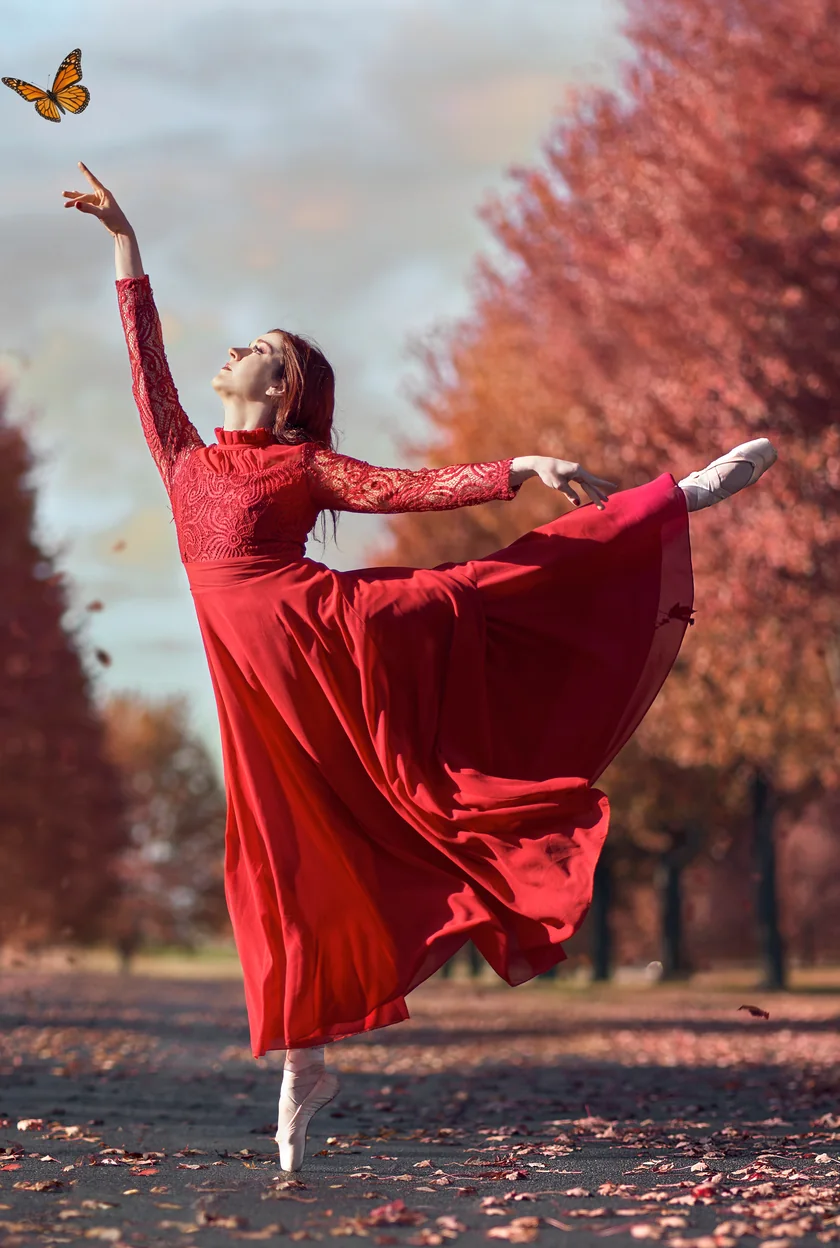
Model: Jennifer Raelynn. Photo by Scott E. Detweiler.
Change one detail  of a huge photograph and leave everything
 outside the frame untouched.
- Bring in the photographOpen your full-size image.
- Frame one detailChoose exactly what to change.
- Give it a guiding pictureShow what you want instead.
- Keep the originalYour new detail sits on a separate layer.
Give your image tool 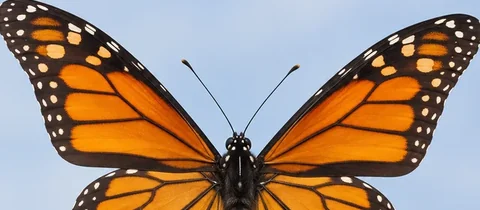 a clear starting point.
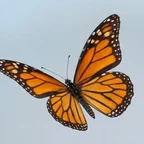
A bot frame gives your image tool a starting picture. Here, it holds the leaf above the dancer’s hand.
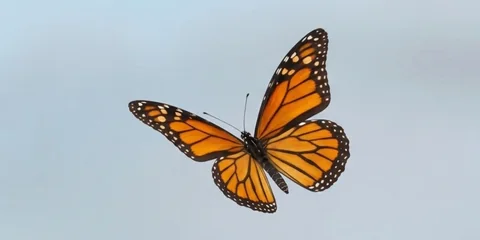
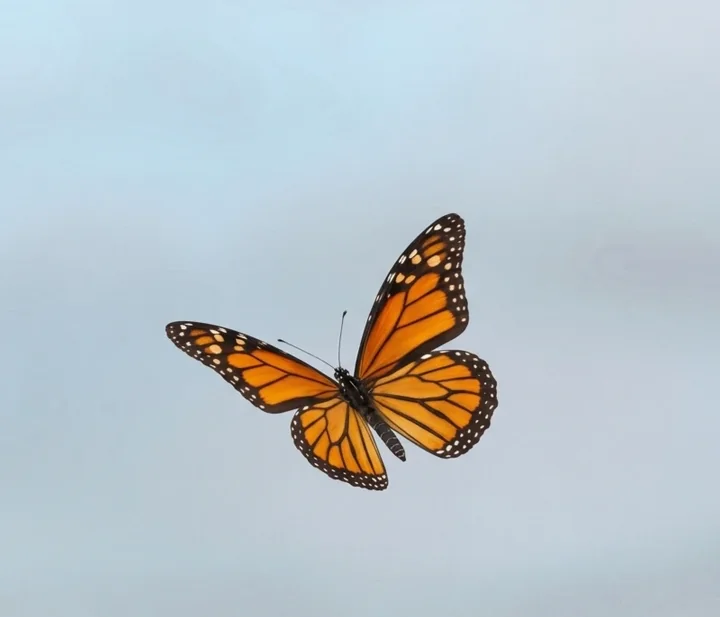
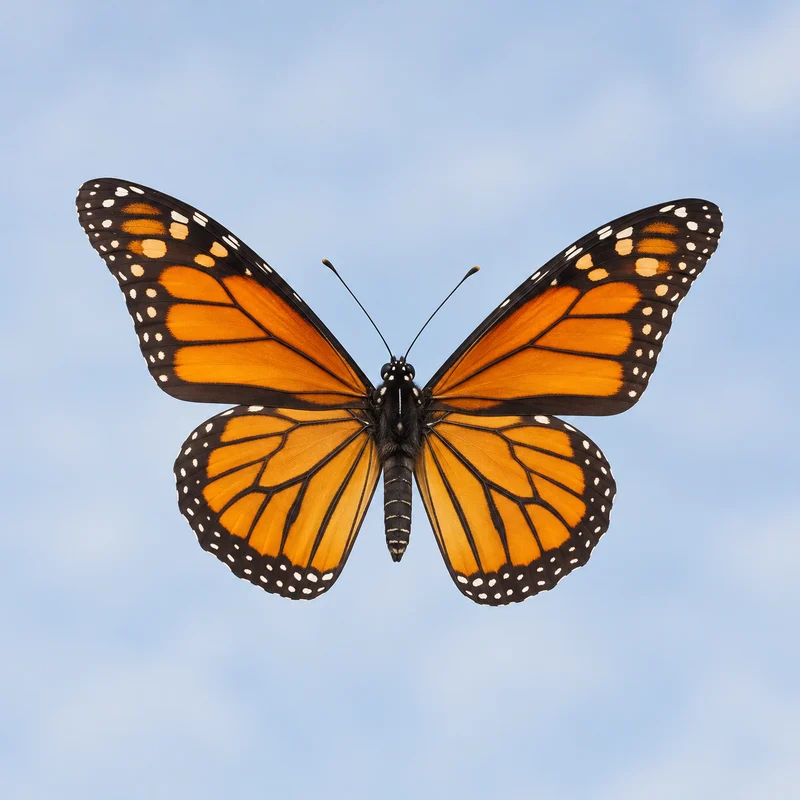
Choose a tool that accepts references, add a butterfly picture and describe the change. The result comes back at a size the tool supports.
The butterfly lands on its own layer. Hide it, blend it into the scene or try another version.
Explore image AI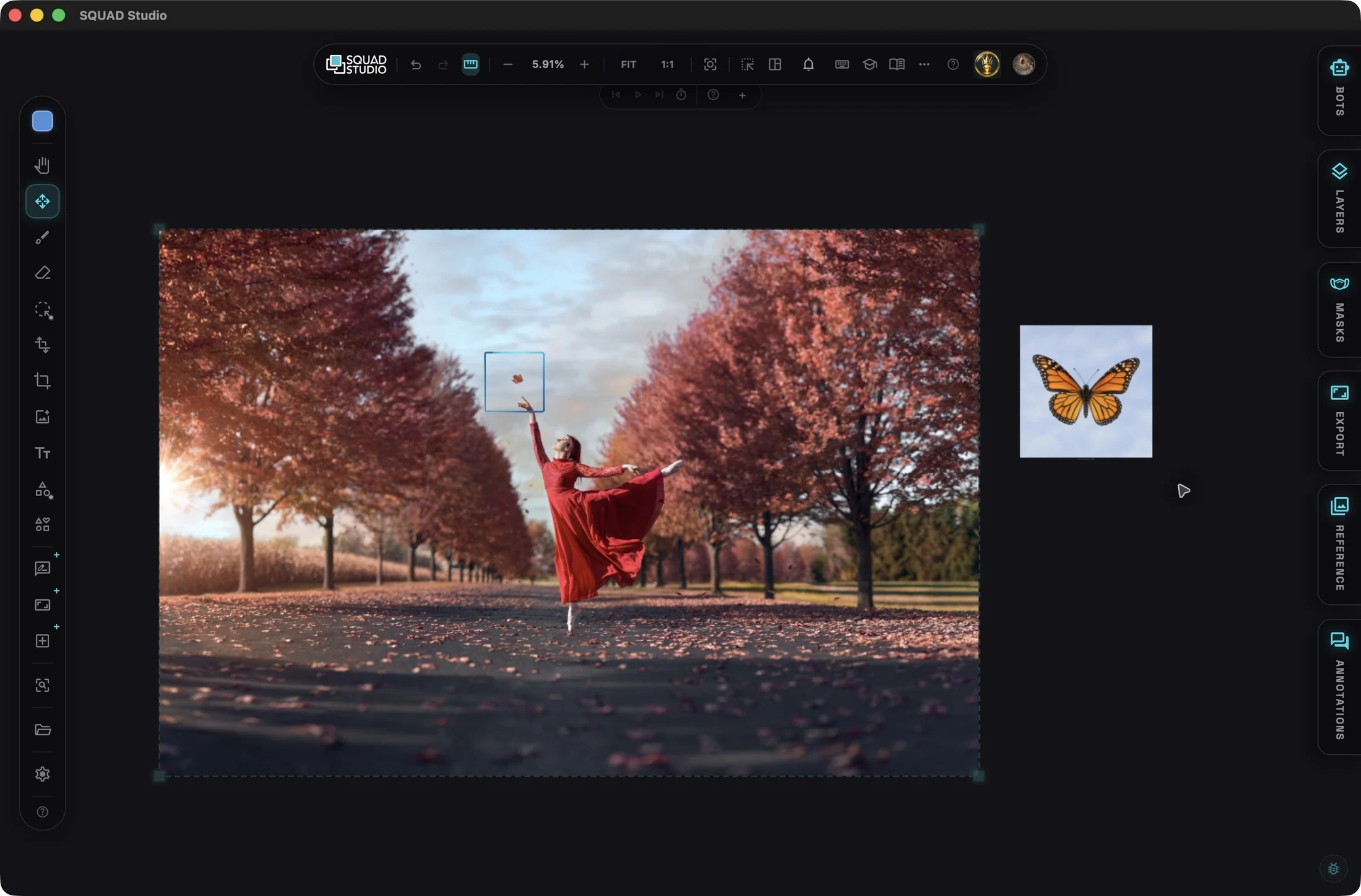
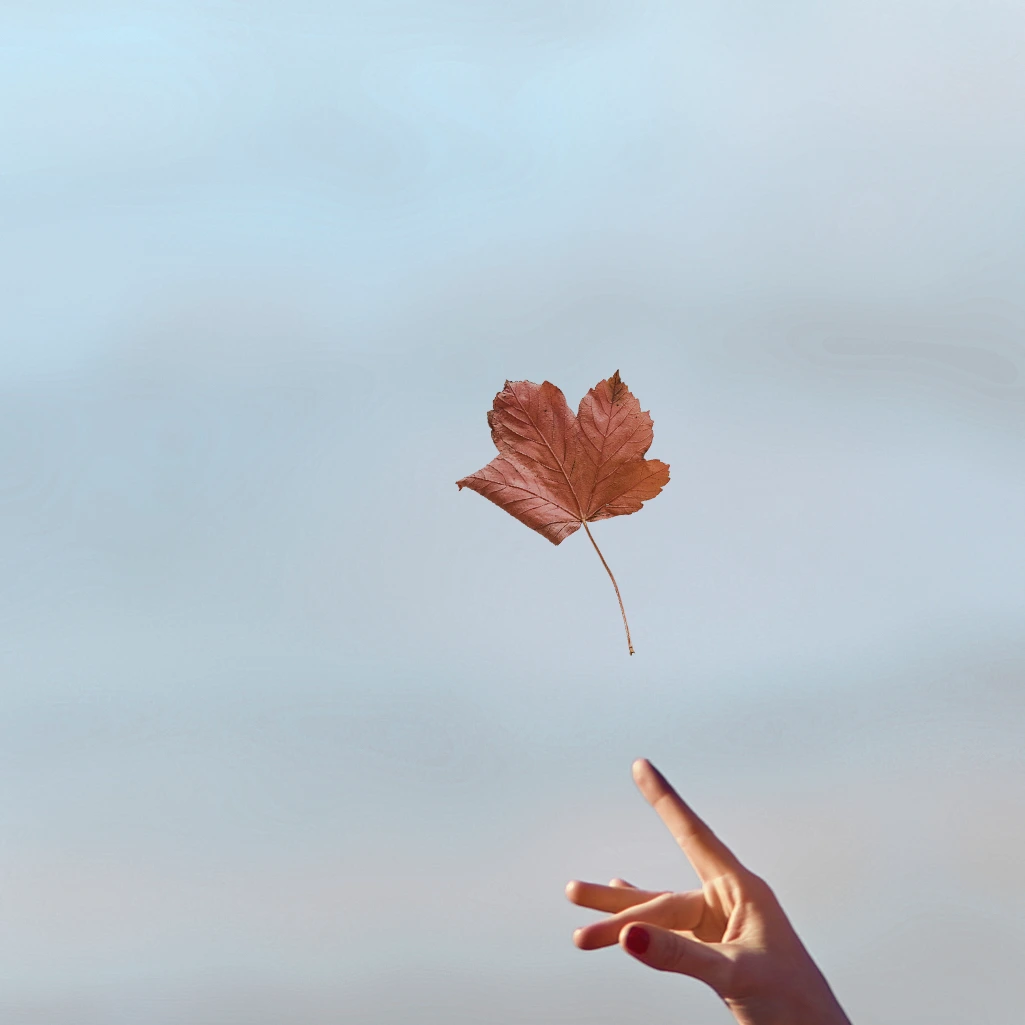
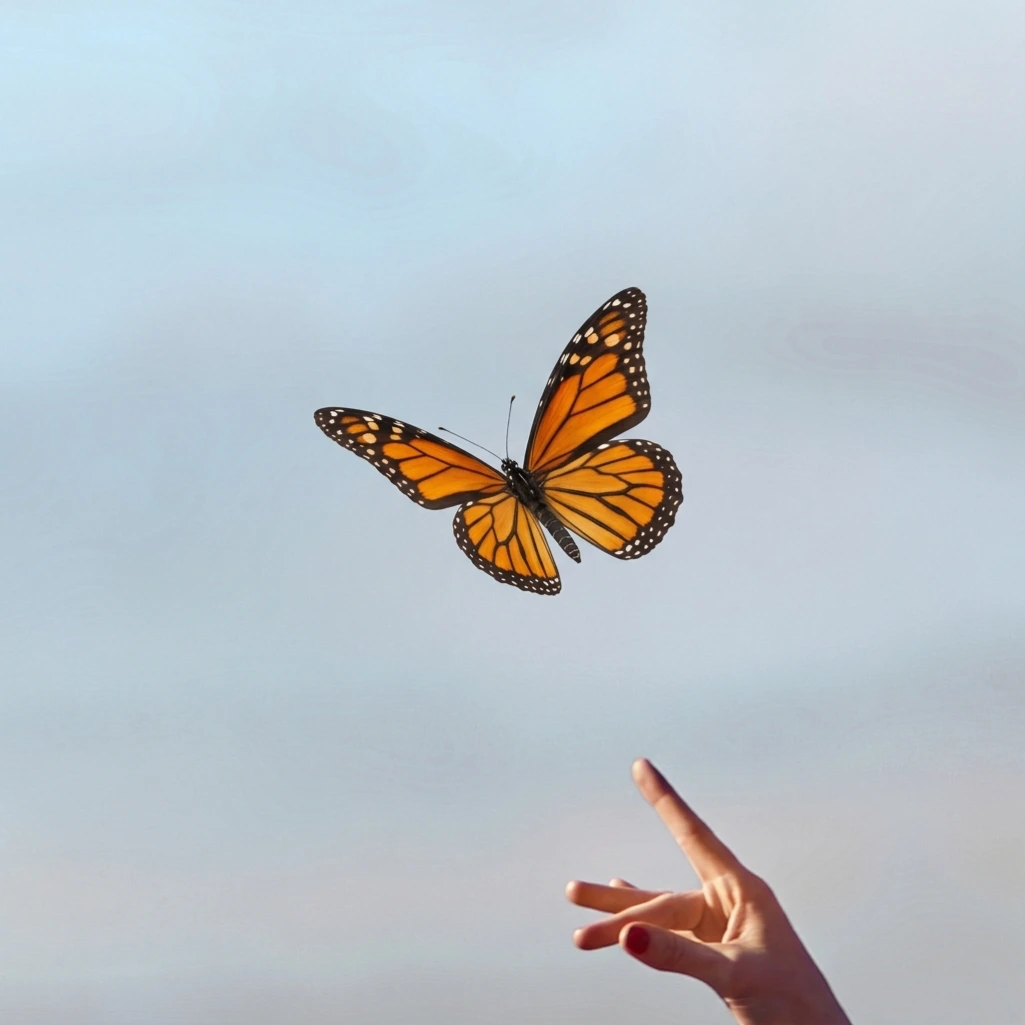
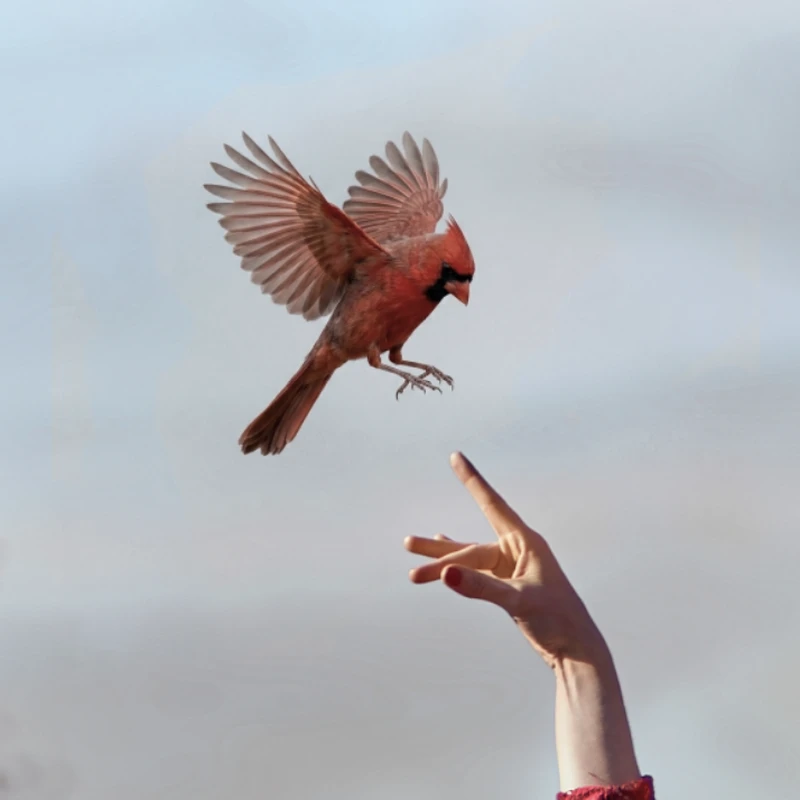
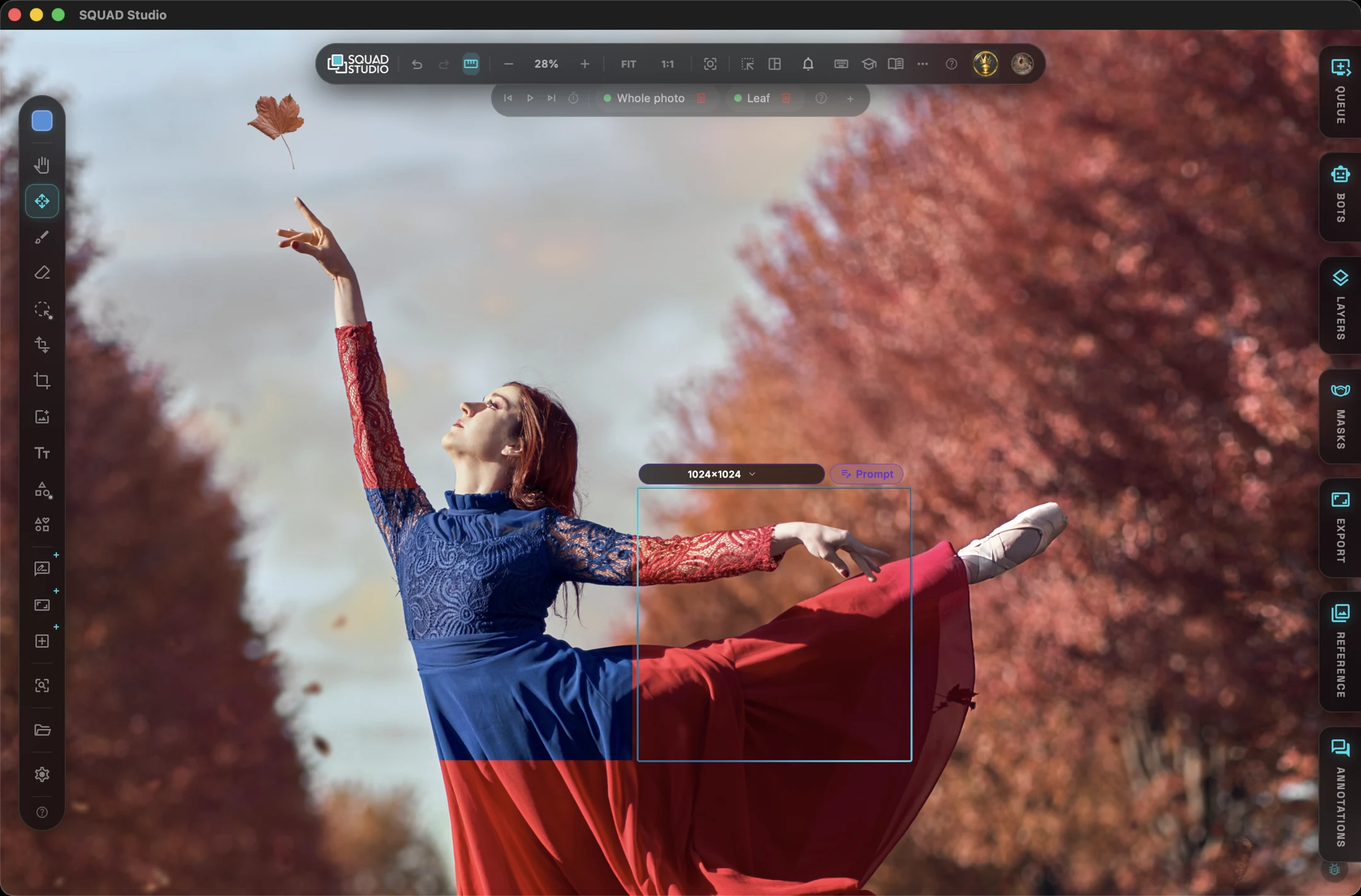
Small squares. Full-size photograph.
Your photograph doesn’t have to shrink to fit your AI tool. Here, a bot works in 1024 × 1024 pixel squares. Turn the dress blue one square at a time, then move the frame and keep going. Each result comes back at the bot’s working size, while your photograph stays at its original size. Tools that support larger areas can work on a larger piece at once.
- Choose the areaFrame the part you want to change
- Keep your options openHide or blend the new layer
Show the mood  you want to capture.
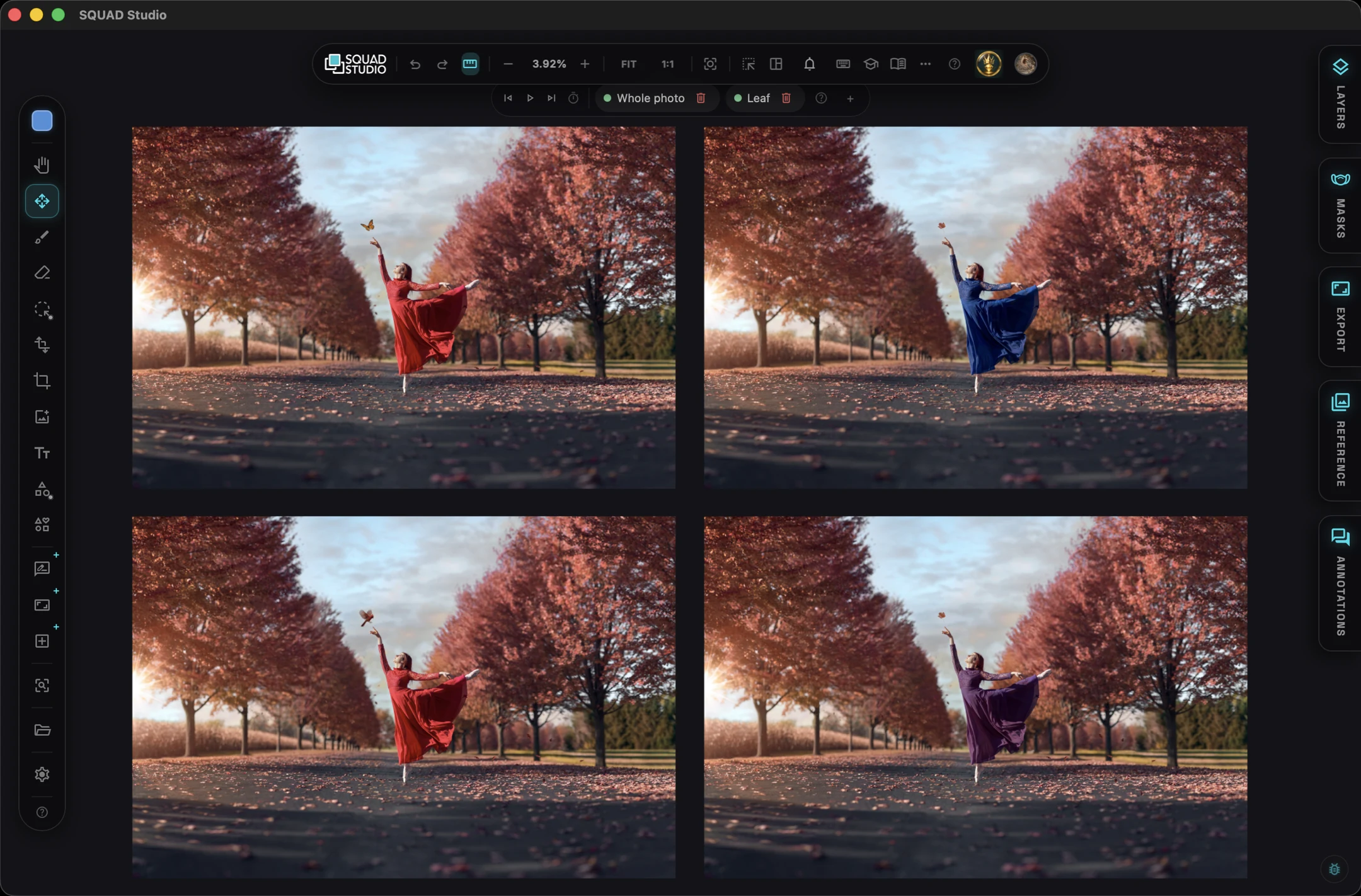
Show the fabric, colors or shape you have in mind. For a single picture, like the monarch butterfly, just type @ followed by its layer name in your instructions. You don't need a reference frame.
A reference frame holds several pictures that guide your image tool. Give the frame a name and type it in your instructions. For an outfit, group a coat, hat and boots in a frame named outfit. Use a tool set up to accept references.
A sketch, color swatches or an AI result can guide the next image too. Keep them beside the photograph, ready to use. Here, we created blue and purple dresses and swapped the butterfly for a cardinal, keeping all four full-size versions together to compare.
Work with reference pictures- Show what you meanRefer to a picture by its name
- Build on a favoriteUse a result to guide the next image
Keep every part 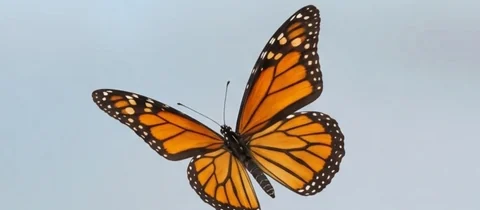 easy to adjust.
Make the new detail feel at home in the photograph. Keep it on its own layer, move it into place, and soften the join with a mask or blend. Adjust brightness, contrast, saturation and hue without changing the source. Hide the layer whenever you want to compare it with the original.
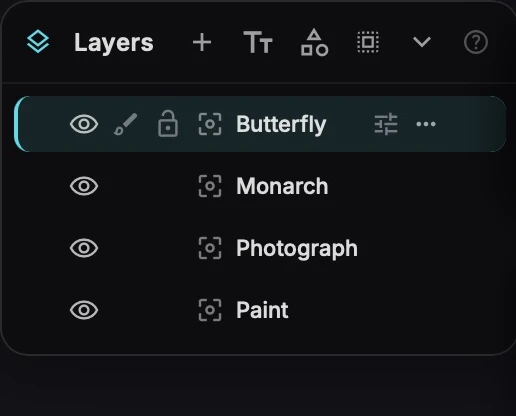
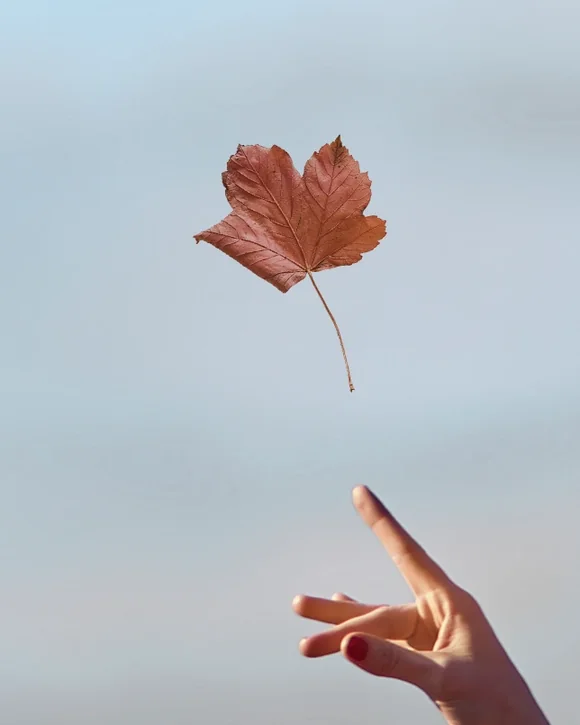
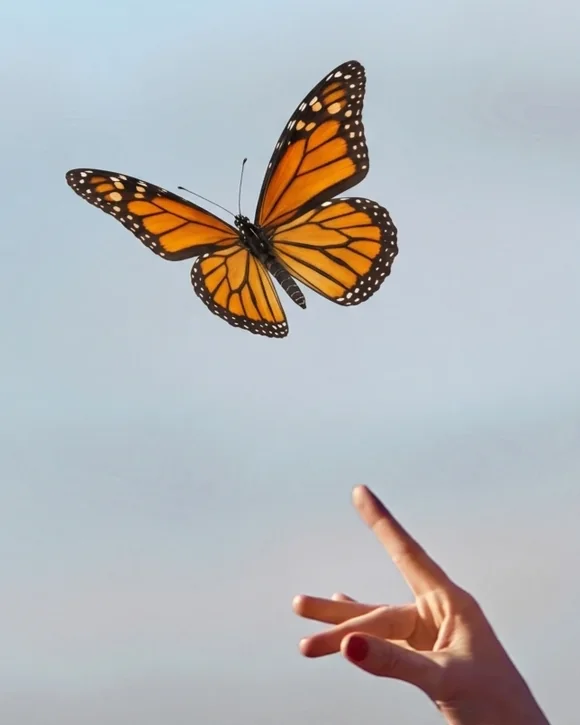
Butterfly, Photograph, and Paint each have their own layer, so you can hide the new detail, compare it with the original, and keep your brushwork separate.
- Separate brushworkPaint, then hide to compare
- Editable colorBrightness, contrast, saturation and hue
- Easy placementMove, resize and rotate layers
- Gentle joinsSoften edges with masks and blends
Find your place  without the hunt.
Name a view and return with a click or number key. Here, Whole photo and Leaf bring the composition and close-up within reach.
Zen mode clears the interface so you can judge the photograph without distractions. Call up layers or frames as needed. Search shortcuts by action or key, then remap them to suit the way you work.
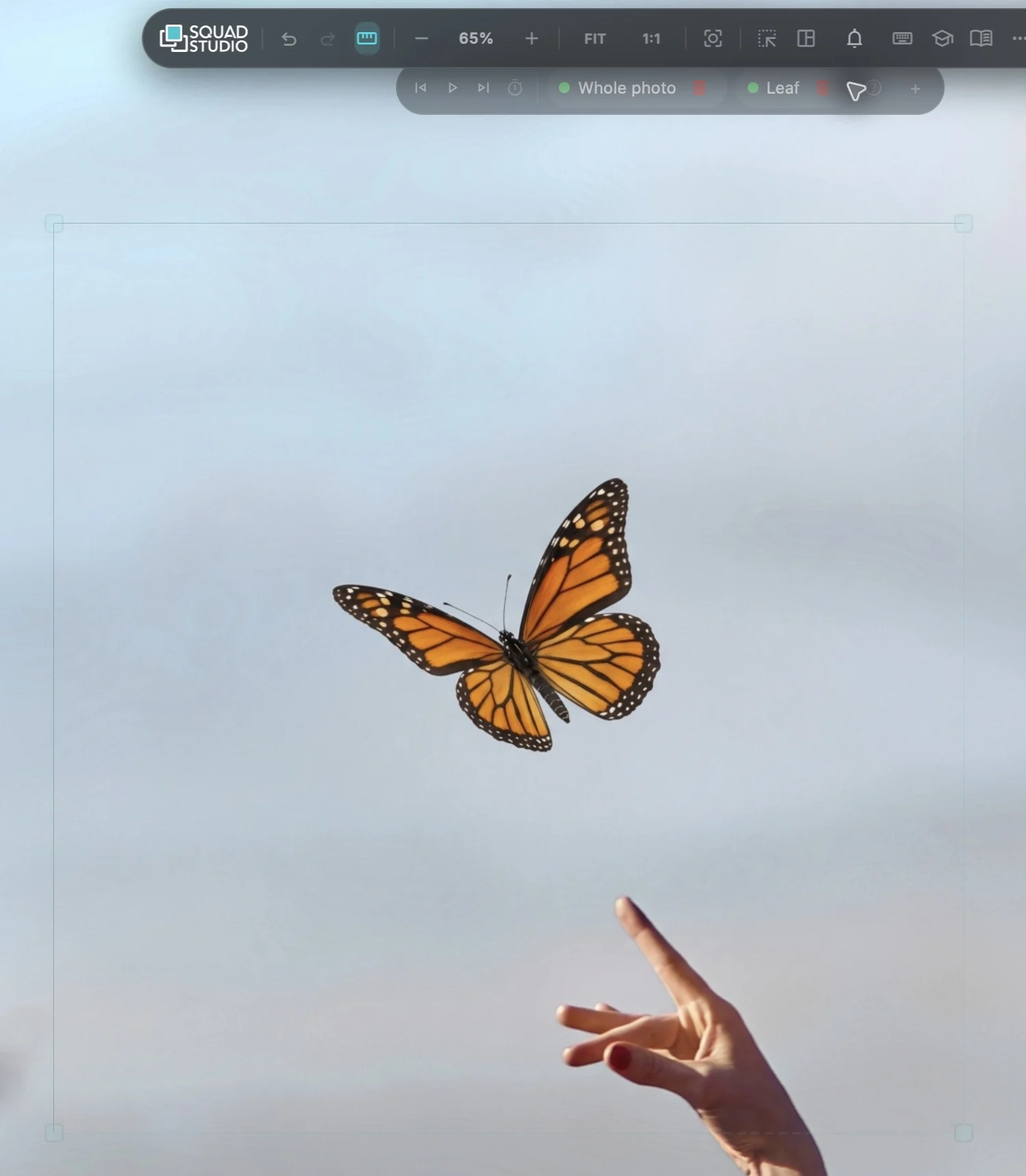
Whole photo and Leaf save the wide view and close-up for another look. On Team, those shared bookmarks bring everyone back to the same places.
- Quiet canvasZen mode clears the interface
- Familiar shortcutsSearch and remap your keys
Make the finishing marks 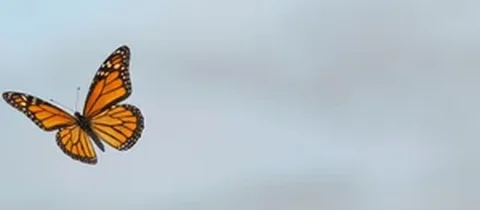 your own.
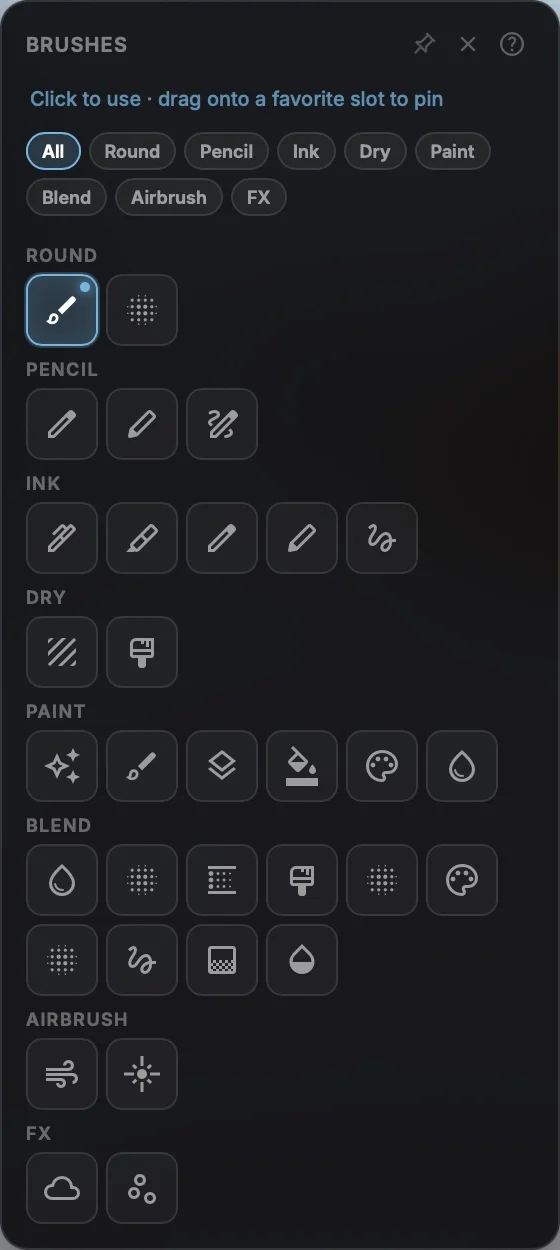
Blend a join, paint in a detail or sample a color from the photograph. Pressure-responsive brushes follow your hand.
Tune size, softness and color strength, then save the settings you like. Keep brushwork on a separate layer so you can hide it and compare. The brushes are still improving, so keep a specialist painting app in your process when you need deeper control.
- Canvas colorsSample any pixel for your brush
- Saved settingsKeep the brush feel you like
- Hands-on blendingMix, smudge and erase marks
- Favorite brushesDrag them onto your panel
Come back to the one you liked.
Keep earlier treatments ready for another look. On Pro and Team, switch on tracking for each export frame to keep a new image version with each save. One thumbnail holds the versions of each picture, with the latest shown first.
Compare plans
The butterfly and leaf drafts sit together in saved history. On Pro and Team, version tracking keeps each saved treatment available when you want to revisit a direction.
- Compare changesSlide between latest and previous
- Saved image versionsOn Pro and Team, per frame
Make room for your next idea.
Have a picture you want to take further? Download the SQUAD Studio beta and try it with your own work. Bring a prepared ComfyUI setup, or connect a supported image service on Pro or Team. Provider and rented-compute charges are separate.
For Mac and Windows.